WeCom authentication

Organizations that use WeCom can let users sign in to CloudDM with their organization-managed accounts. CloudDM manages WeCom as a separate SSO provider.
The provider screenshots in this guide show its Chinese interface.
How it works
- The integration uses OAuth 2.0.
- When users choose WeCom on the CloudDM sign-in page, their browser opens the WeCom sign-in page.
- After sign-in, WeCom redirects the browser back to CloudDM with an authorization code.
- CloudDM exchanges the code for user information and completes sign-in.
Configure the provider
- Sign in to CloudDM with permission to manage integrations.
- Open Integrations > SSO and click Add.
- Select WeCom.
- Enter Corp ID, Agent ID, and App Secret, then choose a Default Role.
- Click Add.
Verify sign-in
Sign out and select WeCom on the CloudDM sign-in page. Verify that authorization returns you to CloudDM and that a first-time user receives the configured default role.
WeCom app setup
You can use the same app for sign-in and WeCom approvals, or configure them separately. Refer to the provider's official documentation for current field names and screens.
Before you begin
- Sign in to the WeCom admin console.
- Prepare a domain name that can reach your CloudDM deployment.
Create the app
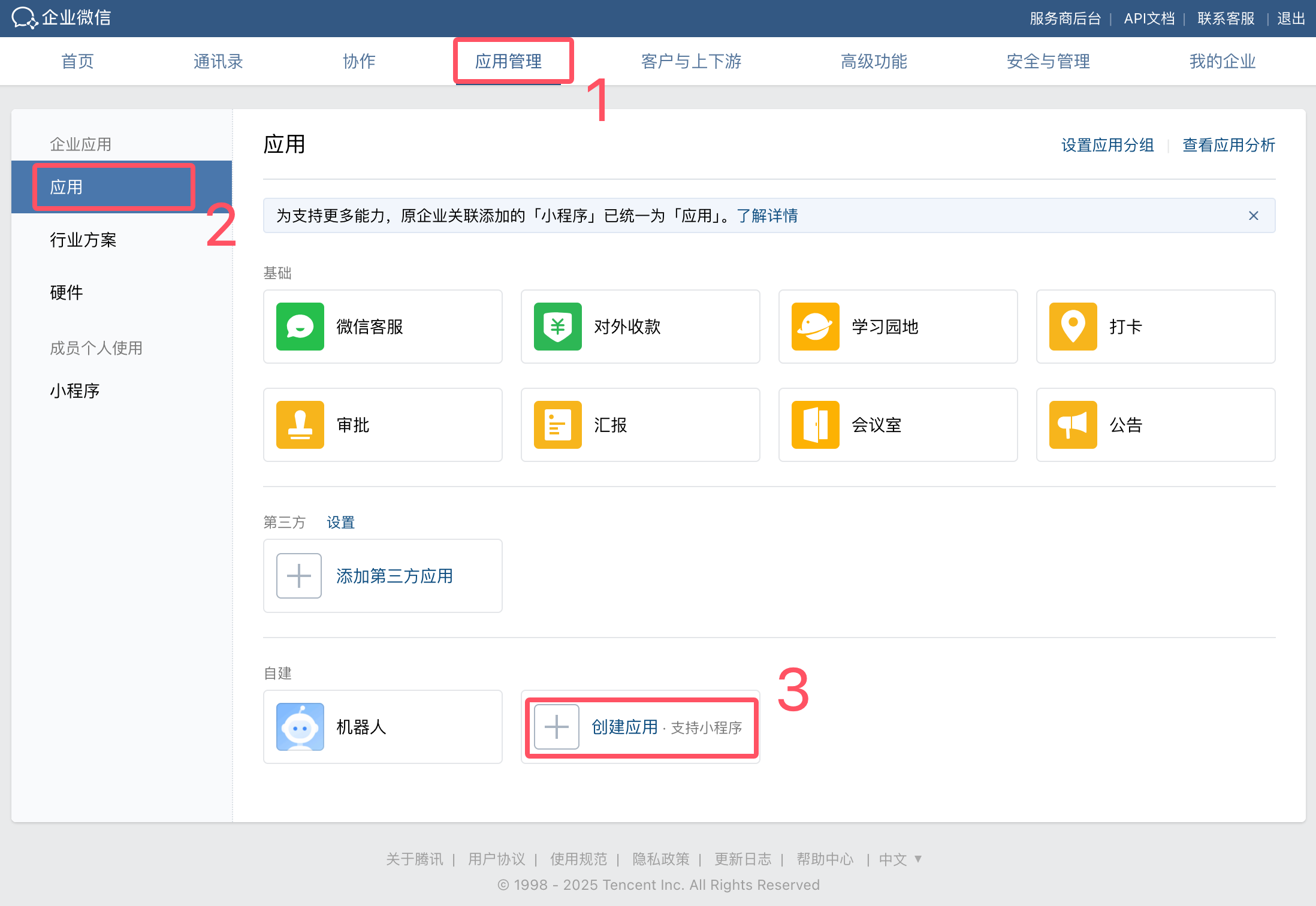
- Open App Management > Apps > Create App.
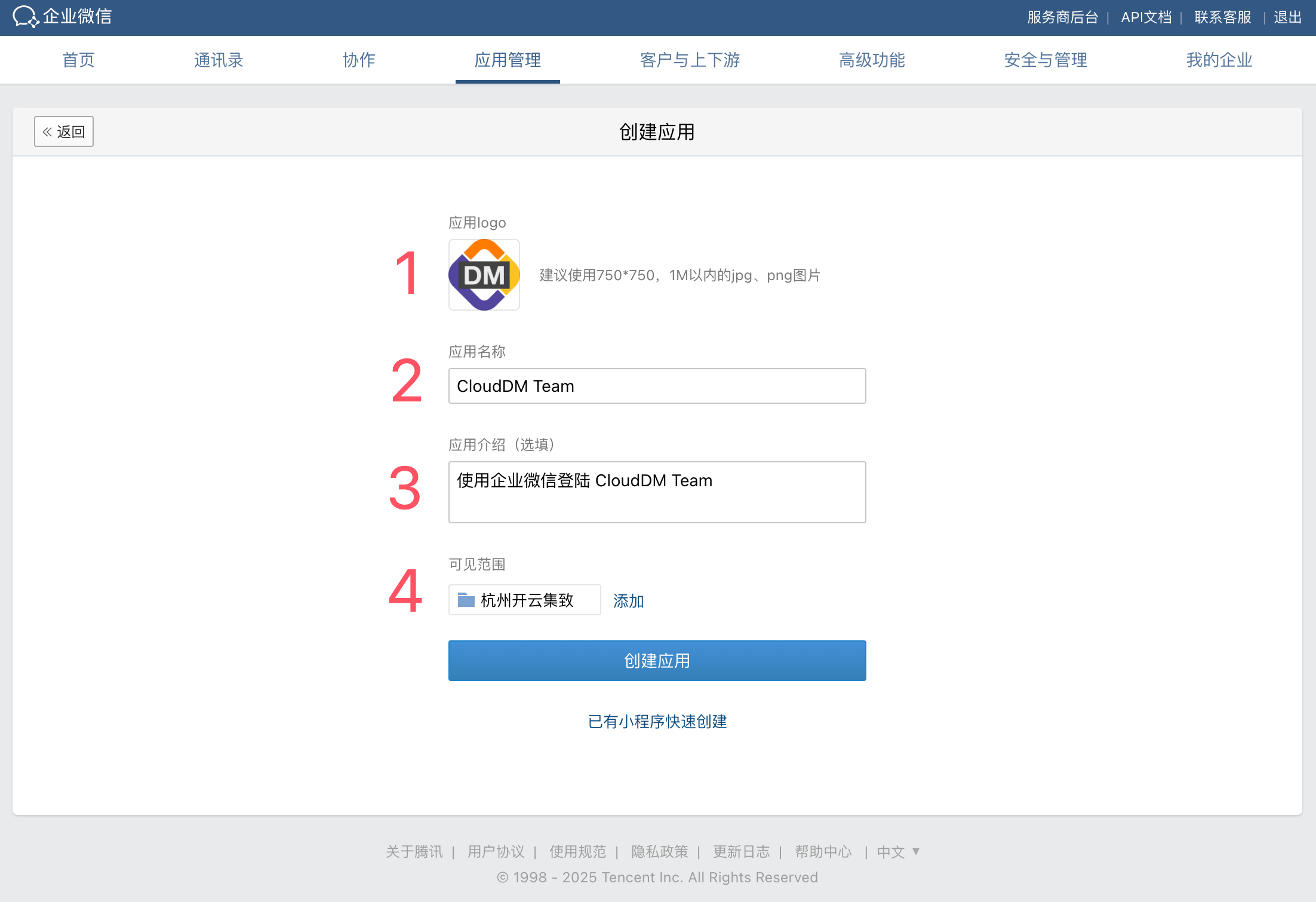
- Enter the app details, set its availability to the members or departments that need CloudDM, and save it. App icons are available under Resource downloads.
Configure the app
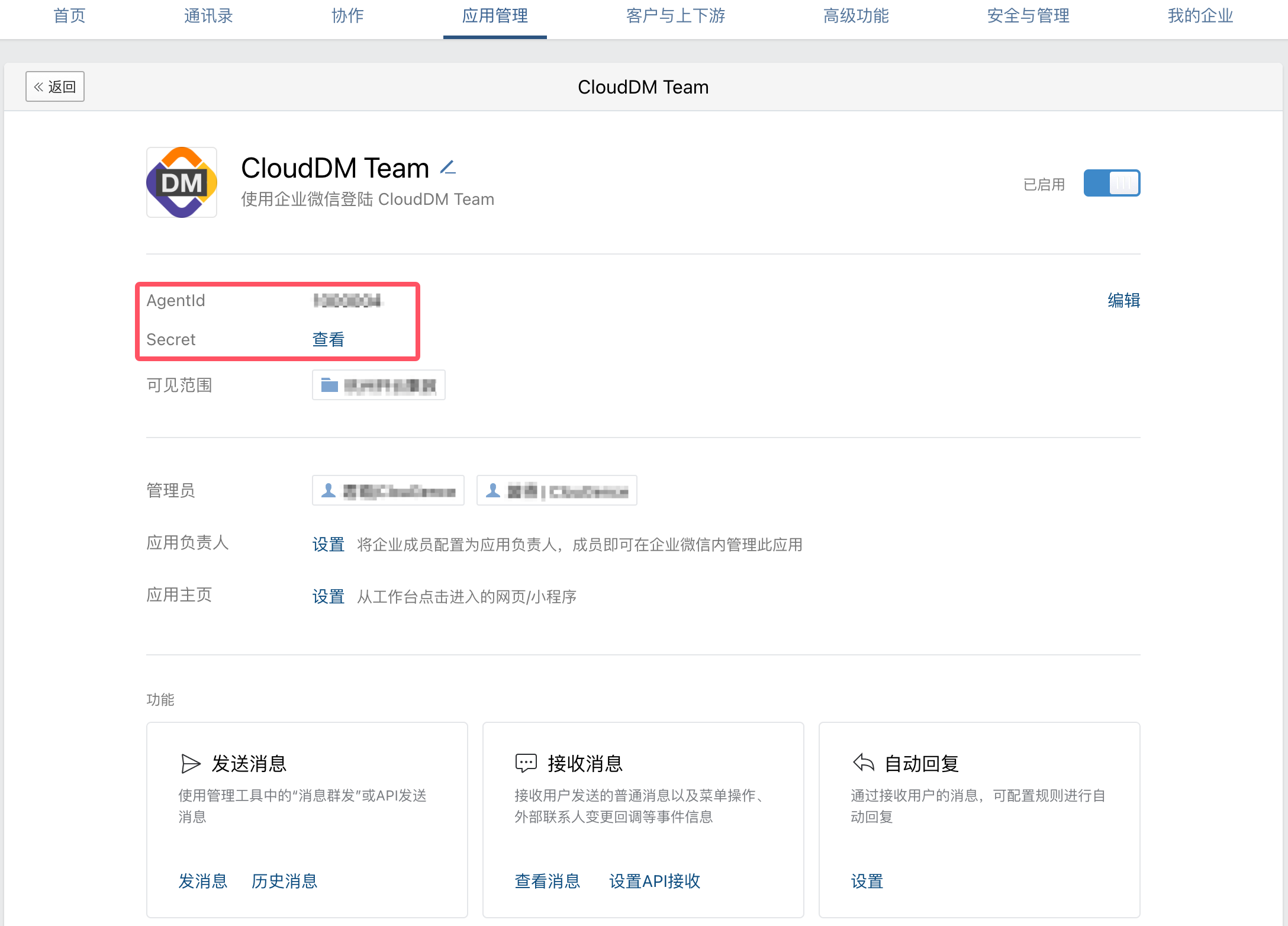
- Copy AgentId and Secret from the app details.
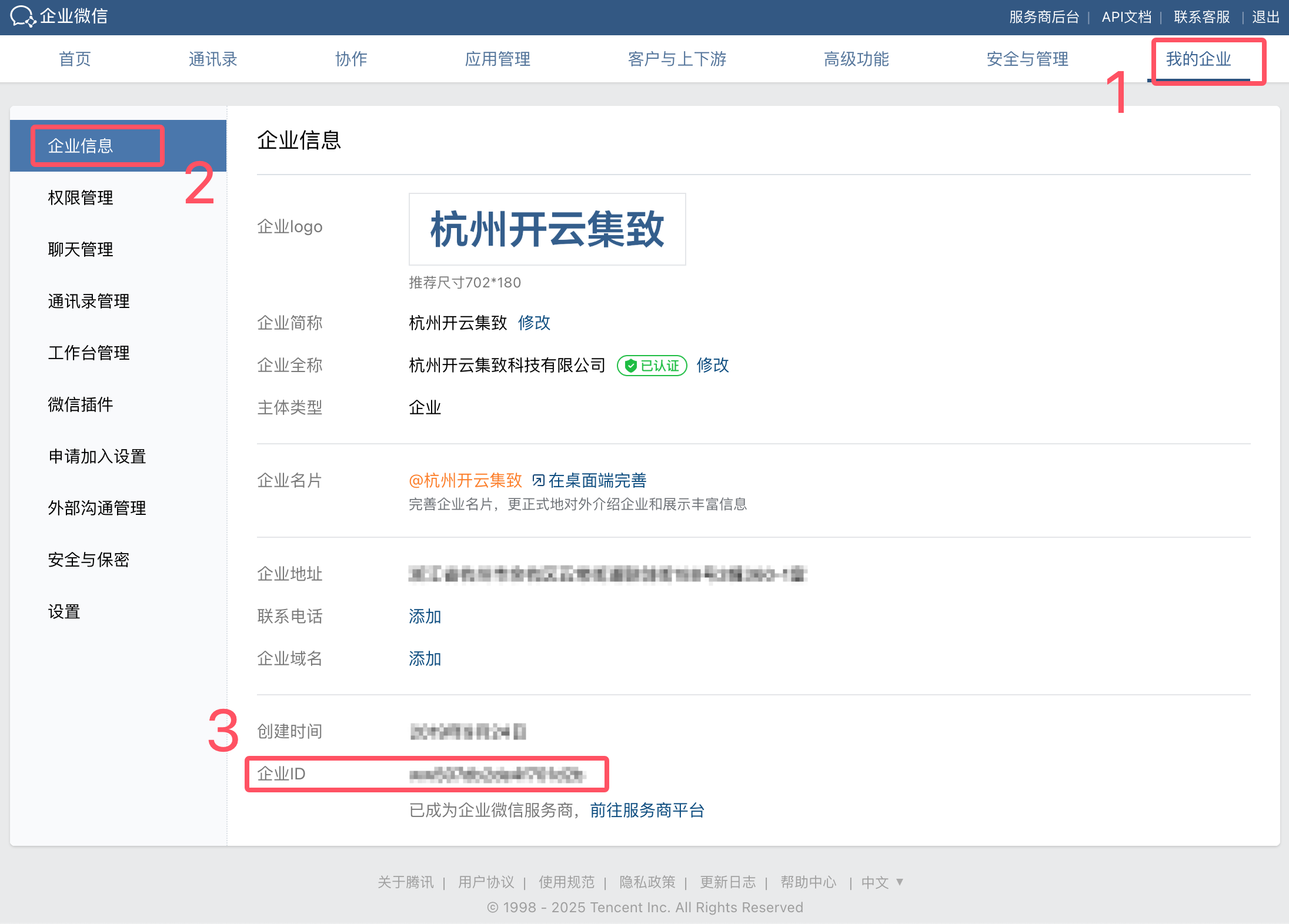
- Copy the CorpId from the bottom of My Company.
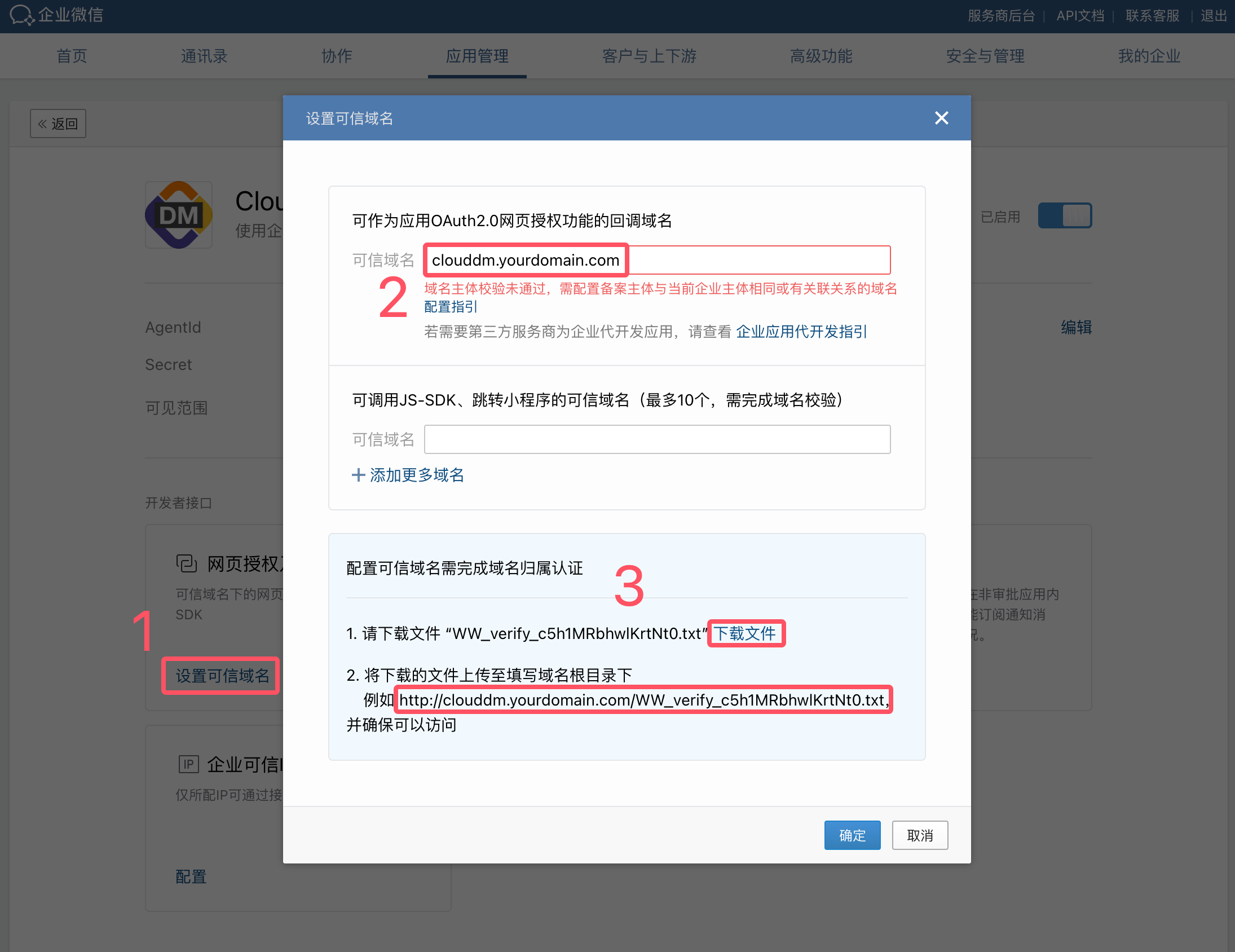
- Under Web Authorization and JS-SDK in the app details, set the trusted domain and complete WeCom's domain verification.
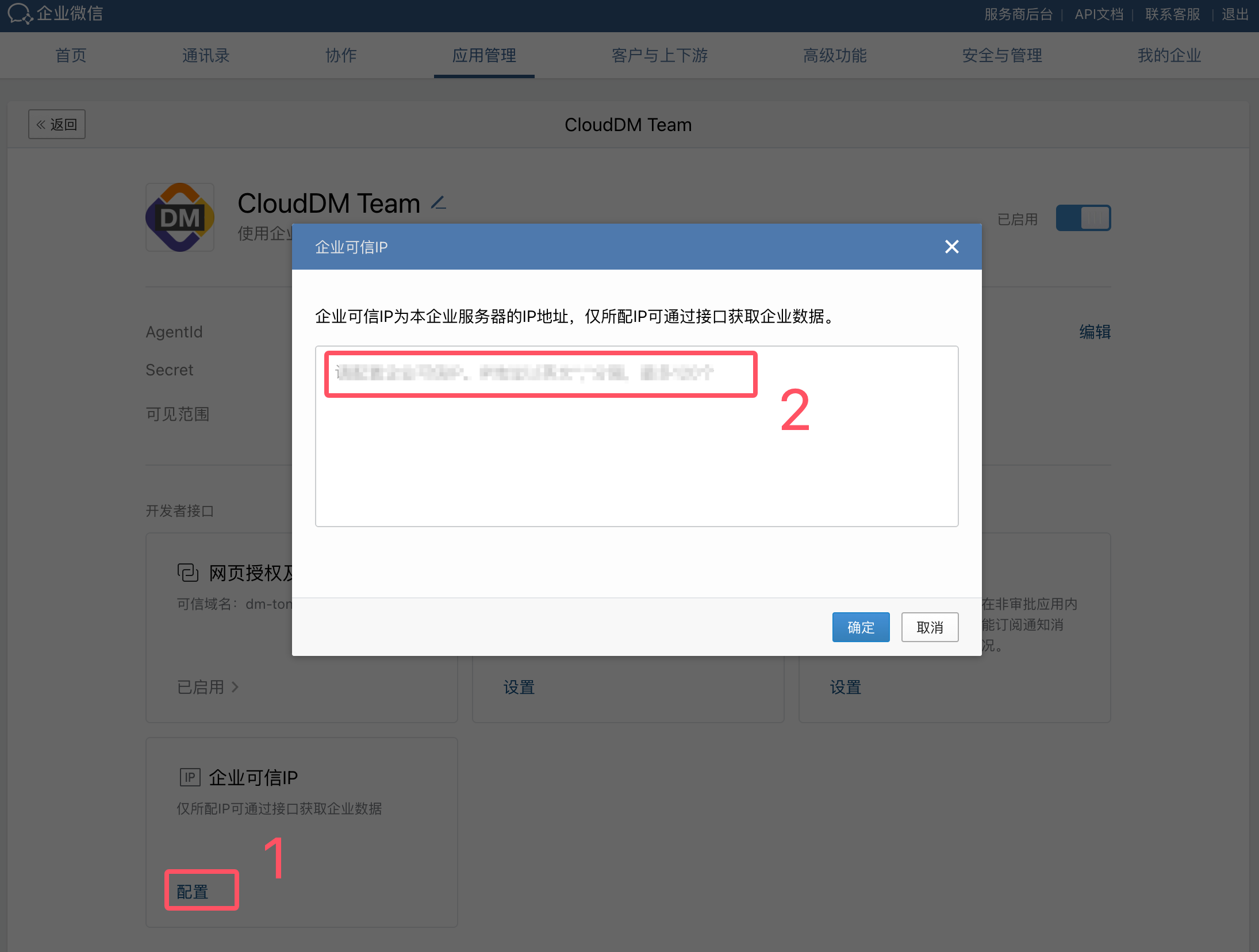
- Add the CloudDM server's public outbound IP address under Trusted Company IPs.
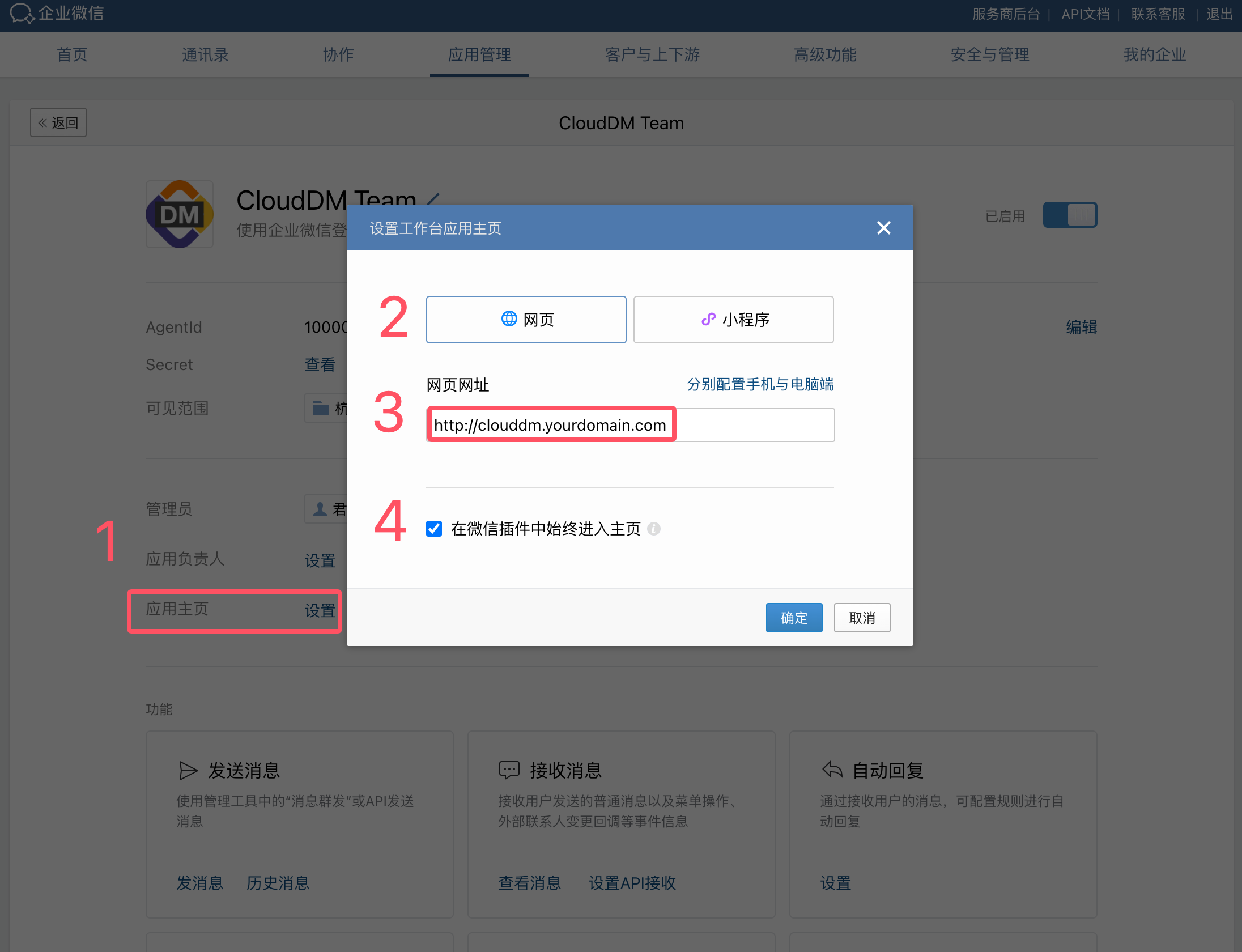
- Set the app homepage in the app details.
Open the app
- Open the WeCom client and find the CloudDM app in the workbench.
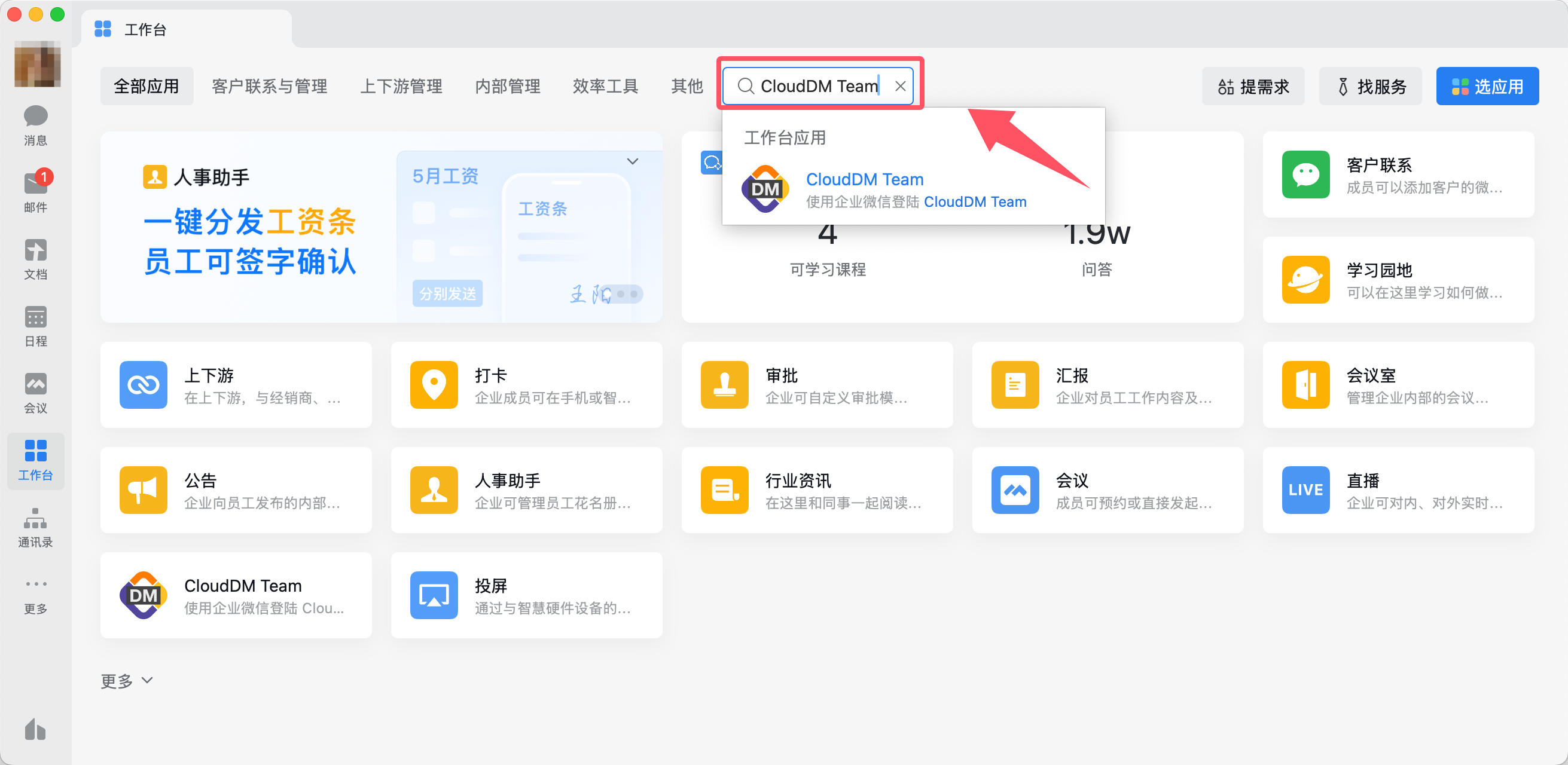
- Open the app and choose WeCom sign-in in CloudDM.
FAQ
Sign-in reports that token retrieval failed with Remote host terminated the handshake.
Check Trusted Company IPs and confirm that the CloudDM server's current public outbound IP address is on the allowlist.