DingTalk approvals
The provider screenshots in this guide show its Chinese interface.
Configure the approval engine
- Sign in to CloudDM with permission to manage integrations.
- Prepare the credentials in DingTalk app setup.
- Open Integrations > Approval Engines.
- Click Add and select DingTalk Approval.
- Enter App ID, App Secret, and API Timeout (seconds). Turn on Enable Immediately if needed.
- Click Add.
DingTalk app setup
You can use the same DingTalk app for single sign-on and ticket approvals, or configure them separately.
Before you begin
- Sign in to the DingTalk developer console and select your organization.
- Obtain developer permissions if you do not already have them.
Configure the app
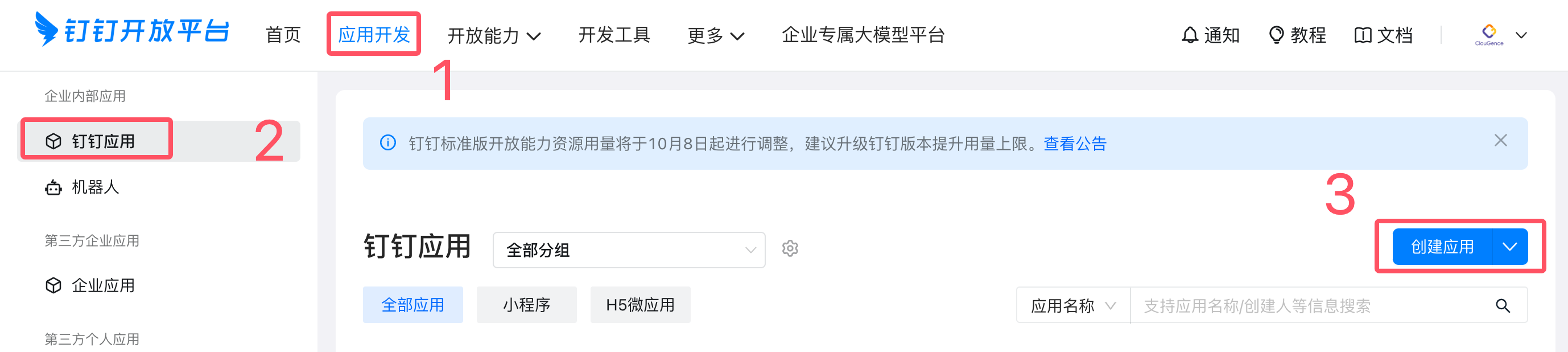
- Open App Development > DingTalk Apps > Create App.
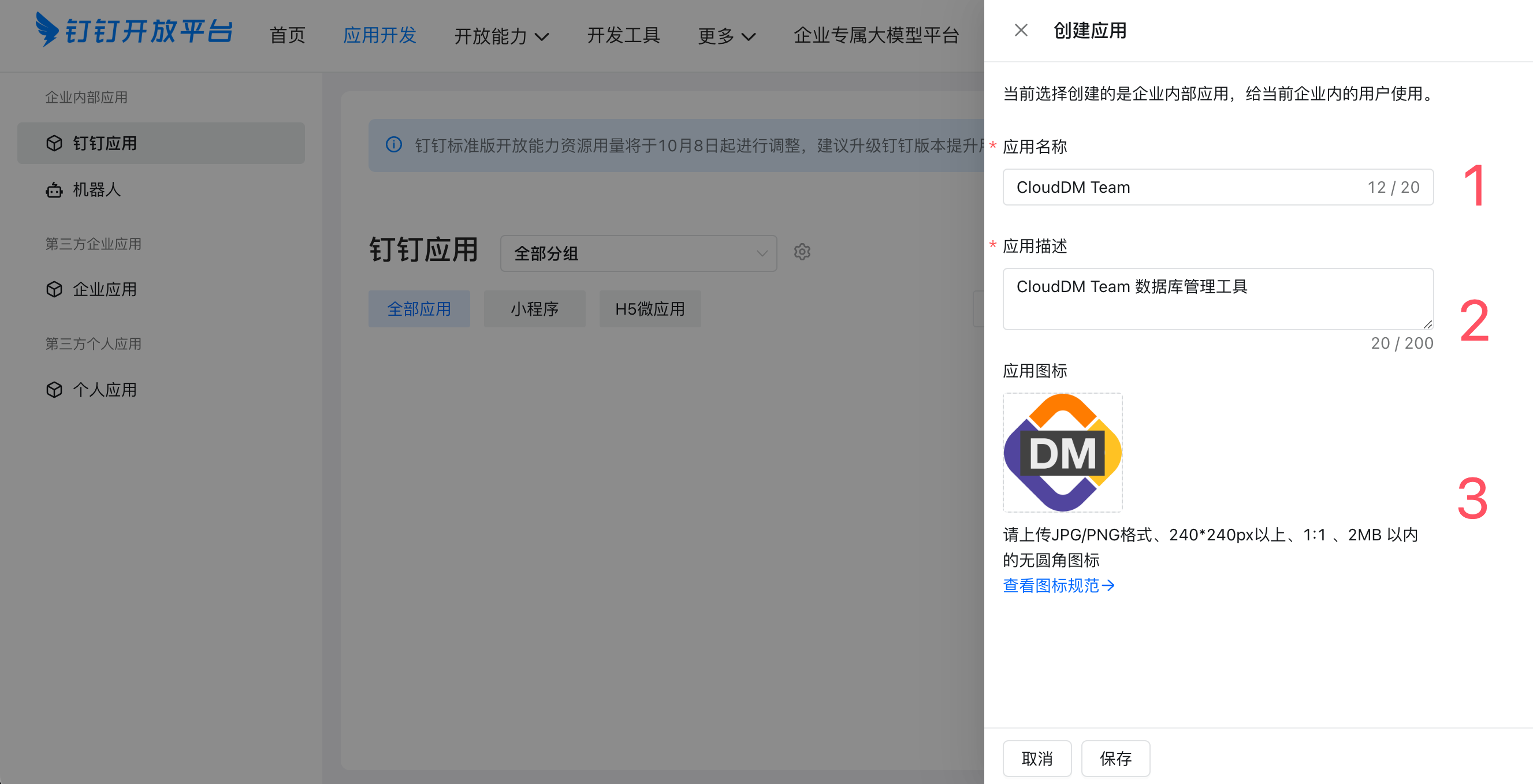
- Enter the app details and click Save. Icons are available under Resource downloads.
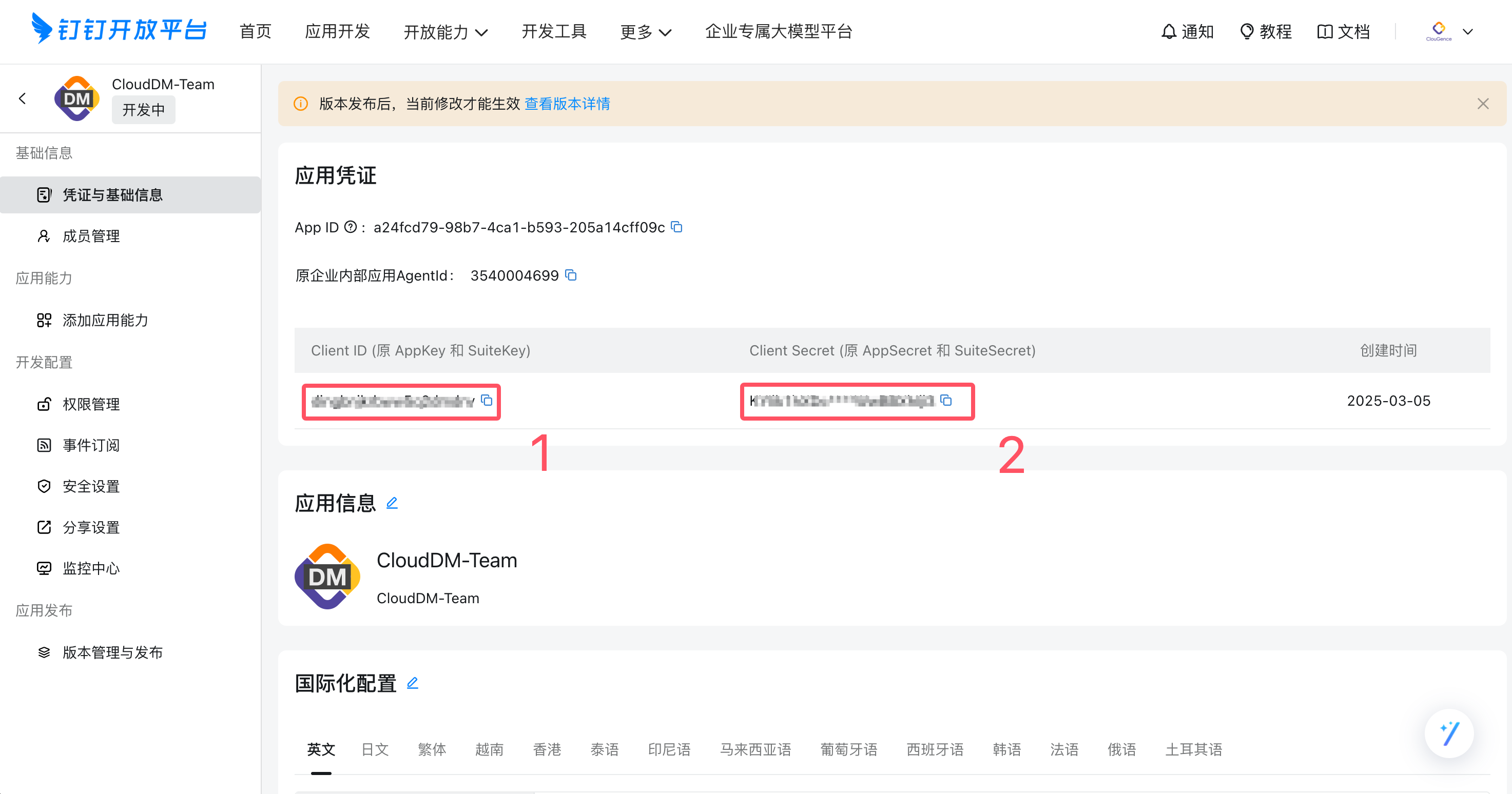
- Under Credentials and Basic Information, copy Client ID and Client Secret.
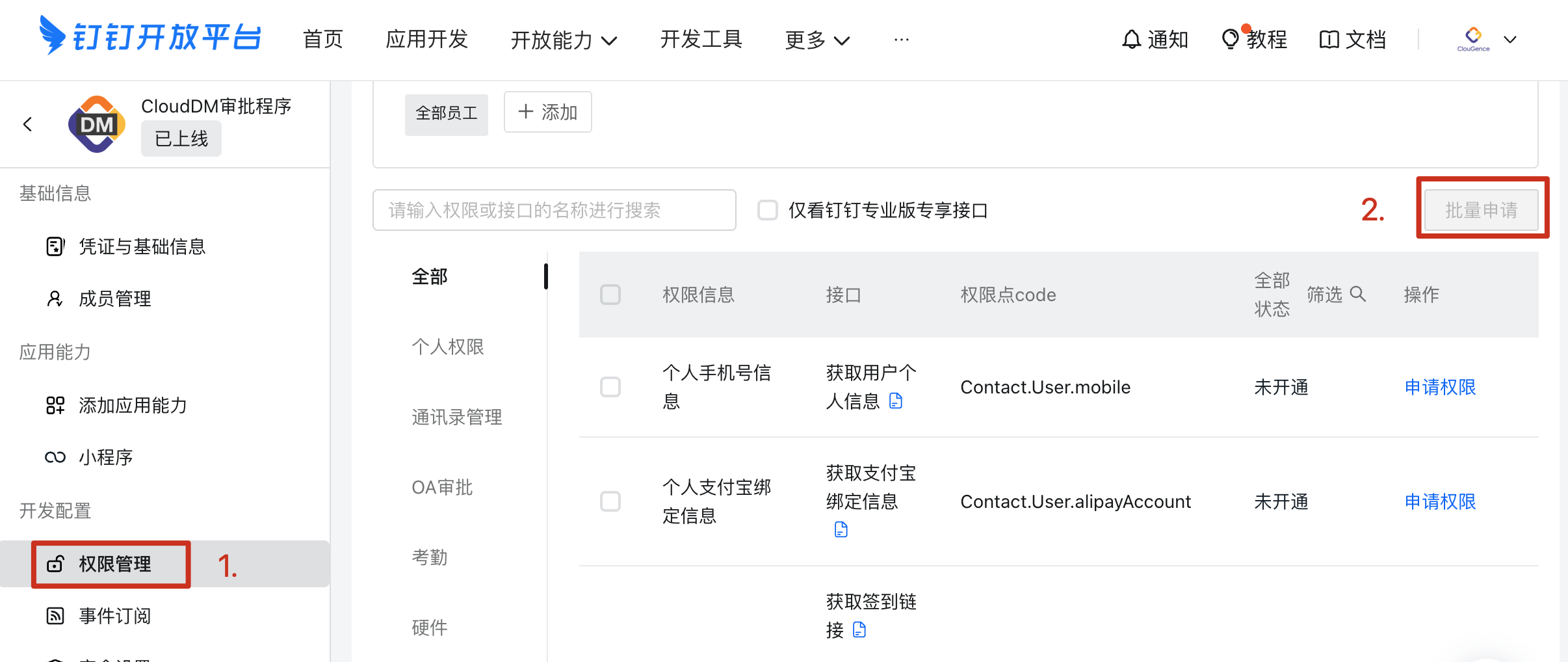
- In Permission Management, grant the following permissions.
- Directory management: access to personal details such as email, read member information, look up members by mobile number, and read department members.
- OA approvals: list approval forms visible to a user, manage workflow data, write workflow instances, and read workflow templates and instances.
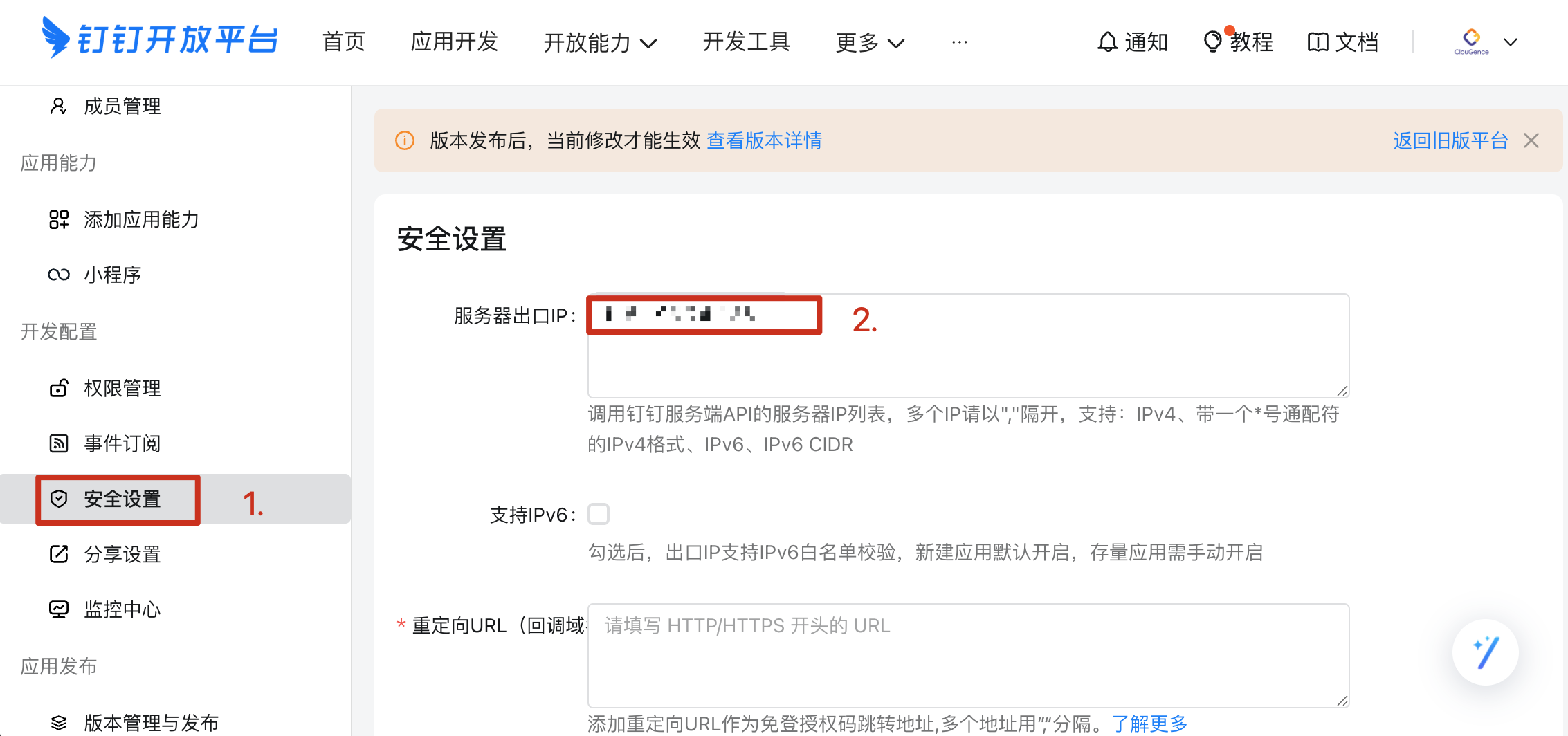
- Under Security Settings, add the public outbound IP address of your CloudDM environment.
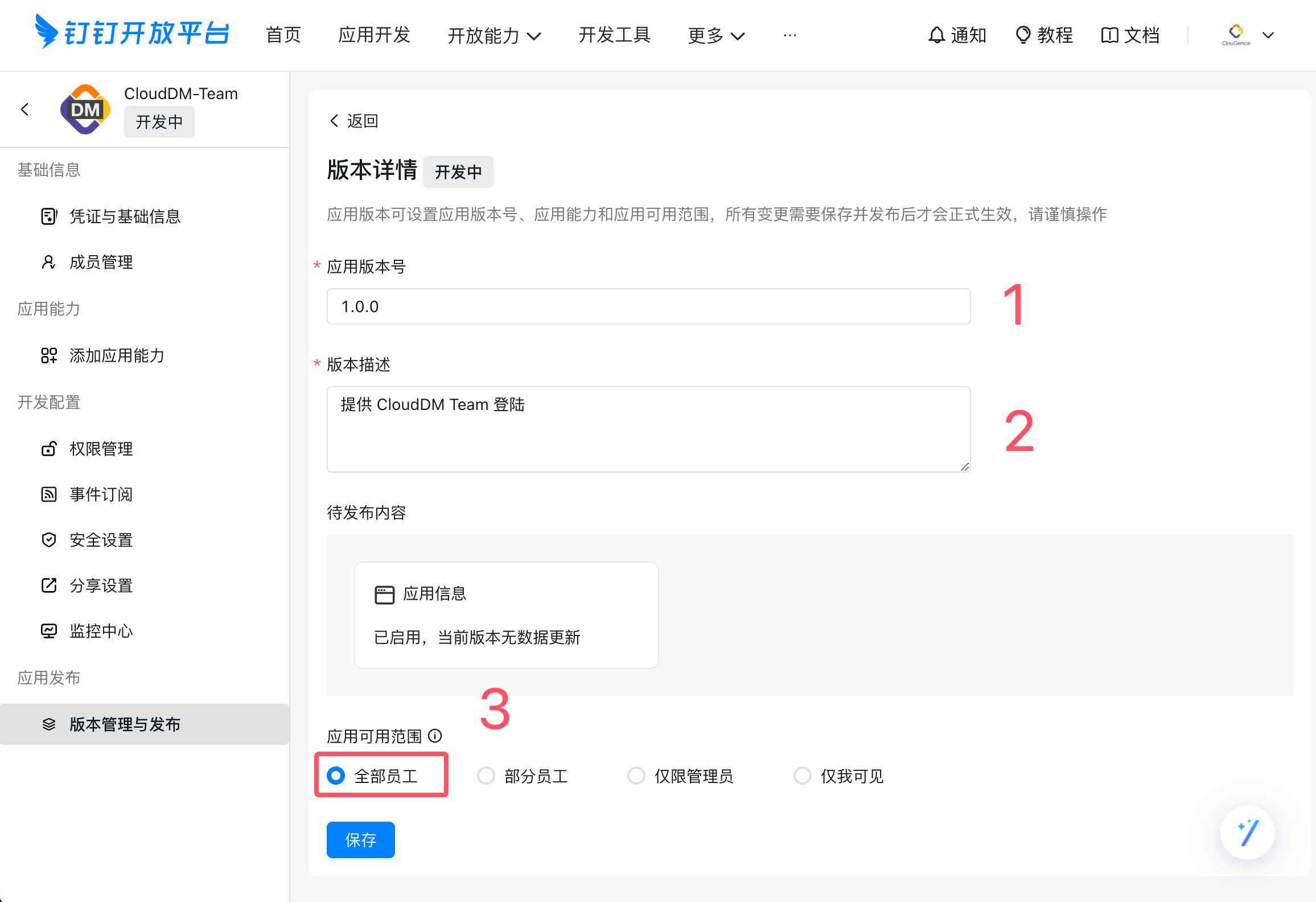
- Under Version Management and Release, publish the app and set availability to All Employees.
Configure approval forms
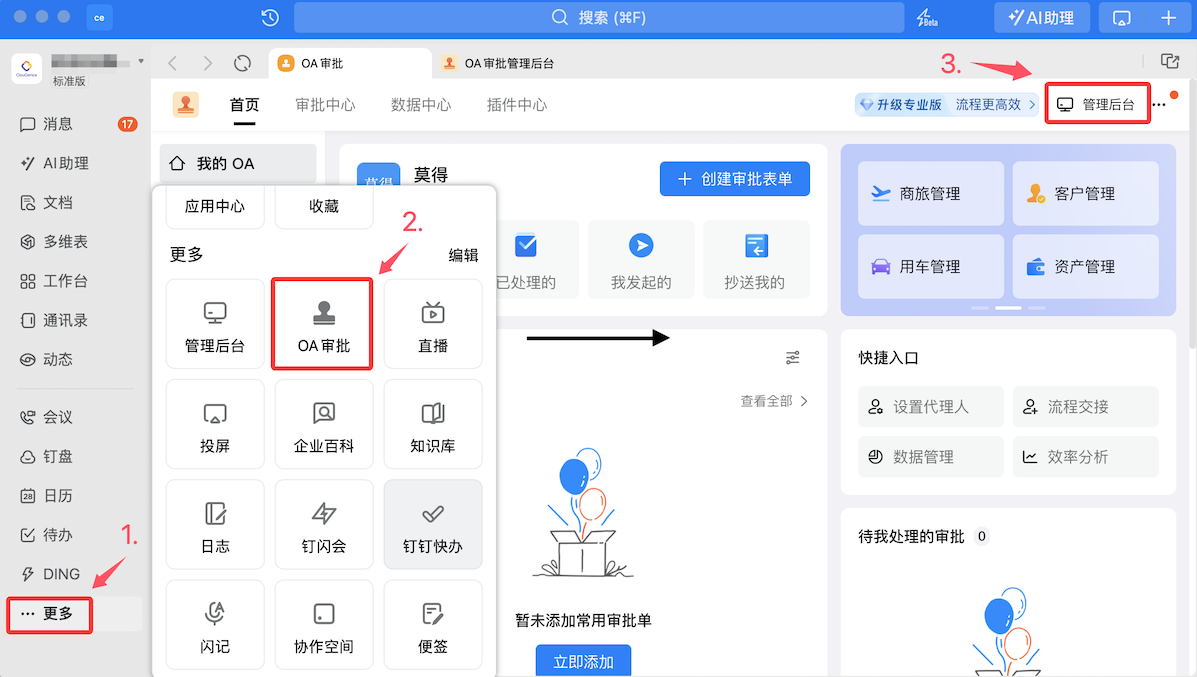
- Open the DingTalk OA approvals admin console in the client or browser.
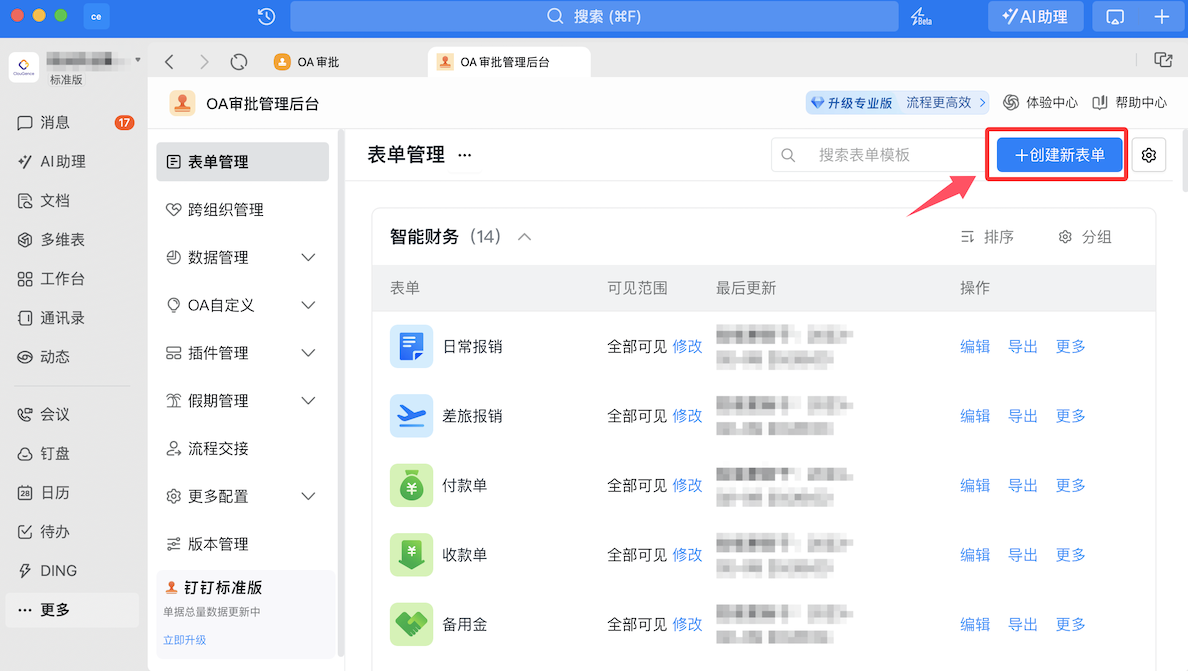
- Click Create New Form and select Workflow Form.
- Under Form Design, add the appropriate fields without marking them required.
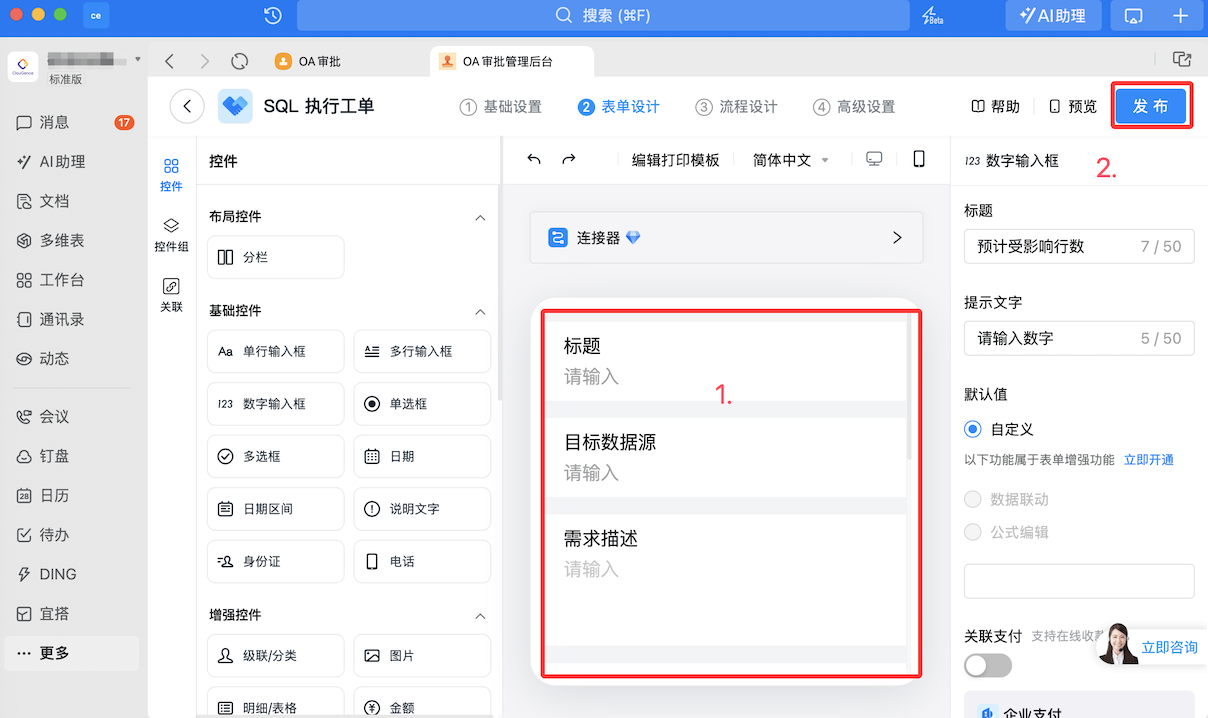
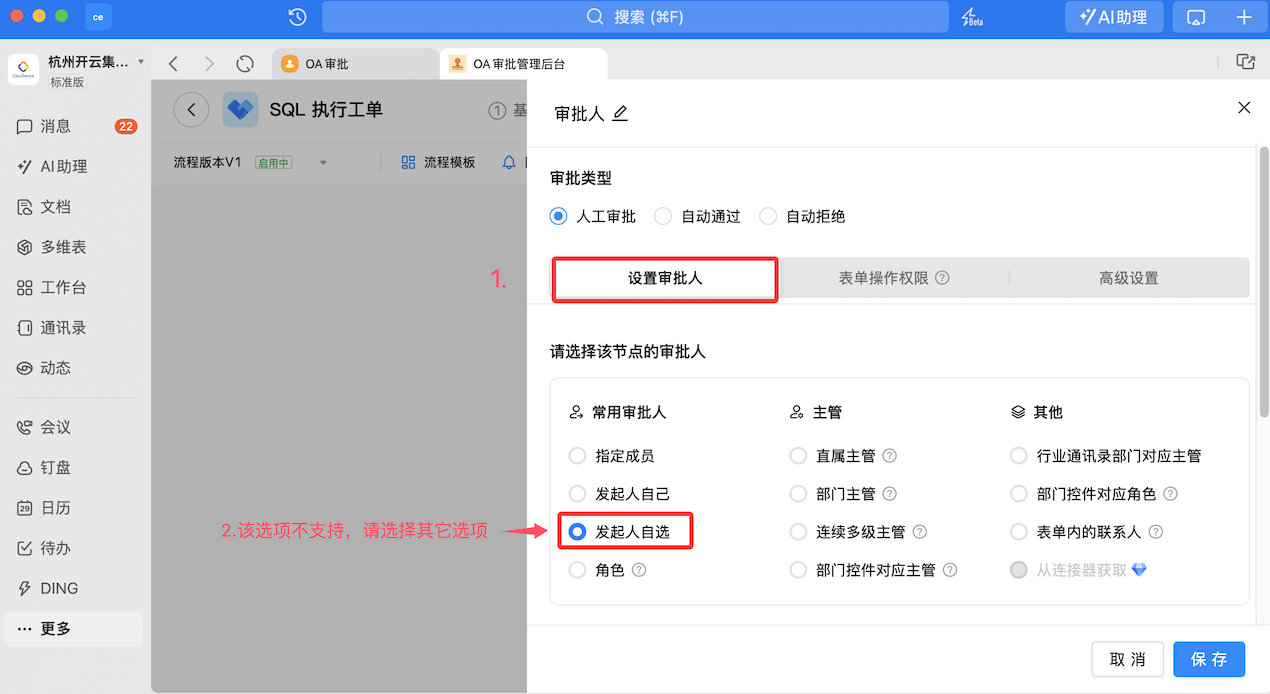
- Under Workflow Design, set the approvers and approval method for each step. CloudDM does not support letting the requester select approvers.
SQL tickets
- Title (single-line input)
- Target DataSource (single-line input)
- Request description (multiline input)
- SQL to execute (multiline input)
- Rollback SQL (multiline input)
- Estimated affected rows (number)
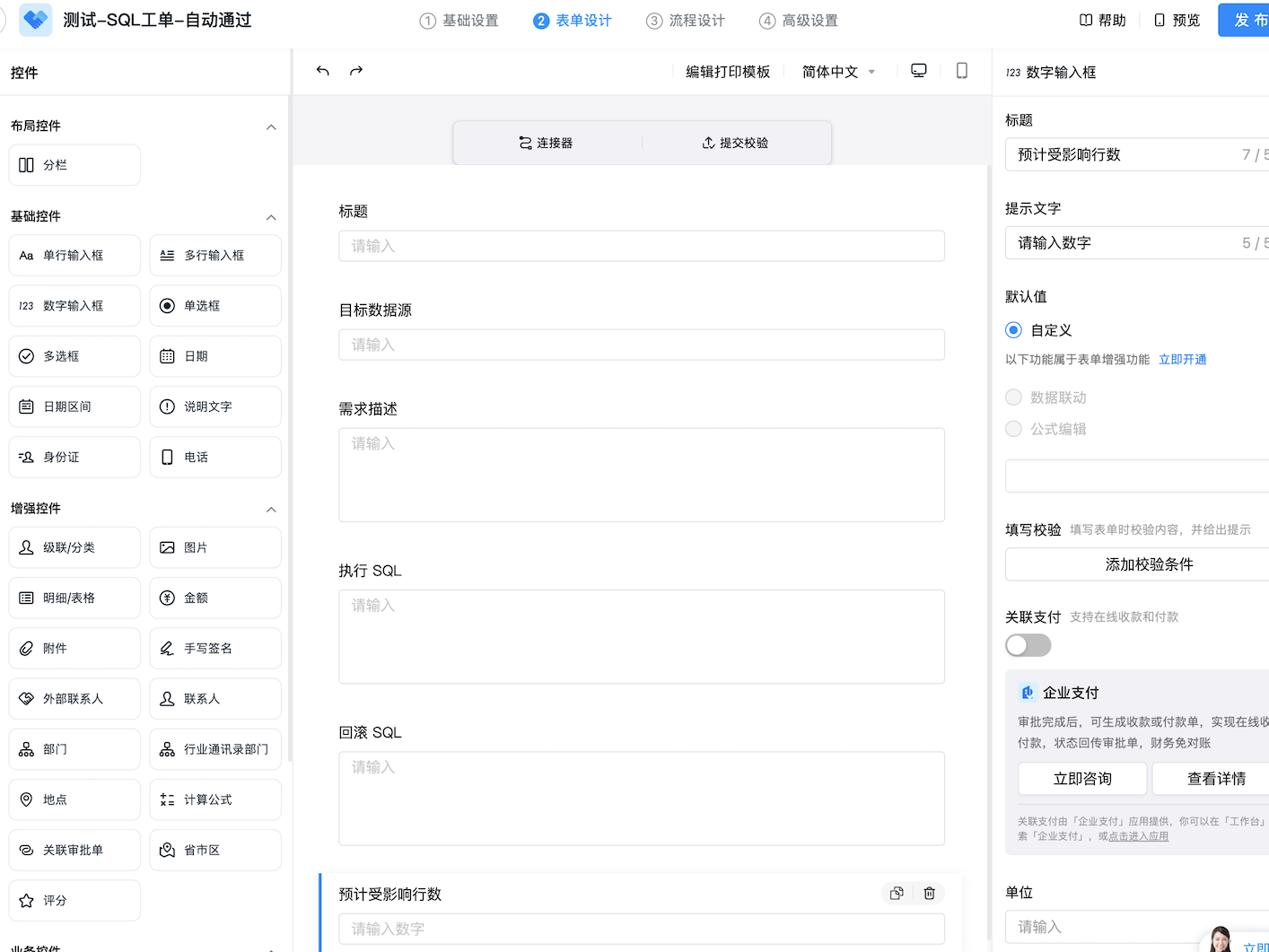
The approval form truncates values that exceed its limits. View the full values in the CloudDM Console. The limit is 400 characters for single-line fields and 4,000 for multiline fields.
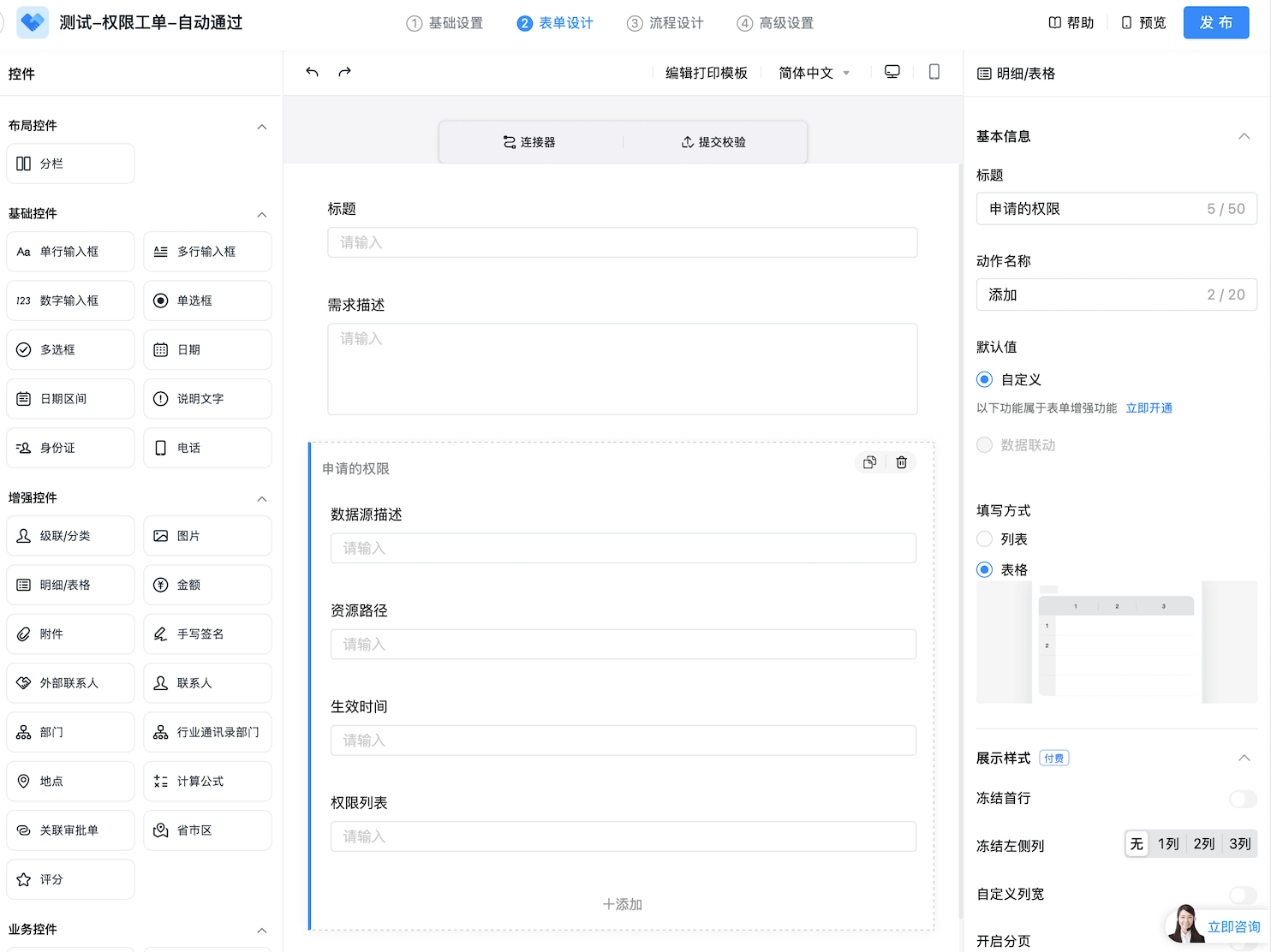
Permission tickets
- Title (single-line input)
- Request description (multiline input)
- Requested permissions (details/table, select table input)
- DataSource description (single-line input)
- Resource path (single-line input)
- Effective time (single-line input)
- Permission list (multiline input)
Change tickets
- Title (single-line input)
- Request description (multiline input)
- Target DataSource (single-line input)
- Change flow (single-line input)
- Change (single-line input)
- Branch (single-line input)
- SQL to execute (multiline input)
Configure event delivery
- Confirm that DingTalk approvals are enabled in CloudDM.
- In the DingTalk Open Platform, open Event Subscriptions, verify the connection channel, and save.
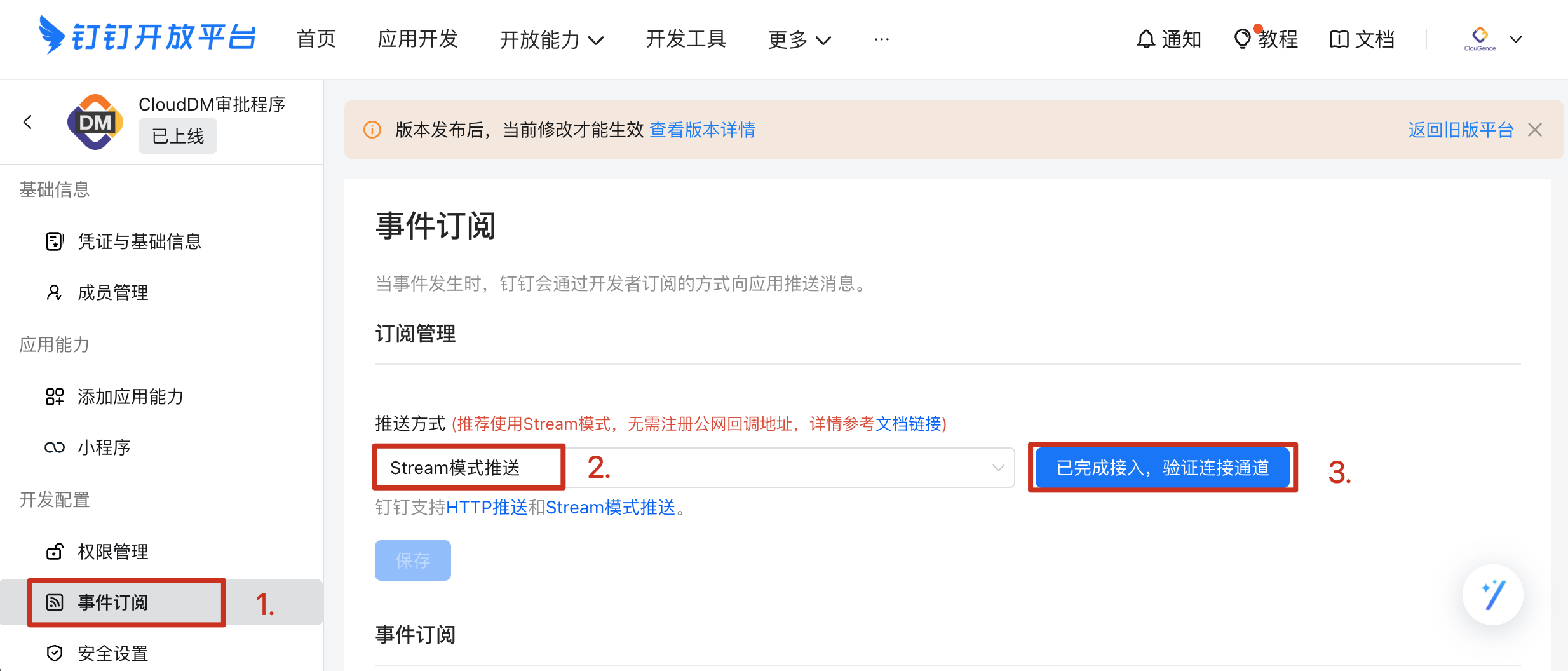
Subscription settings
-
Open the event subscription settings.
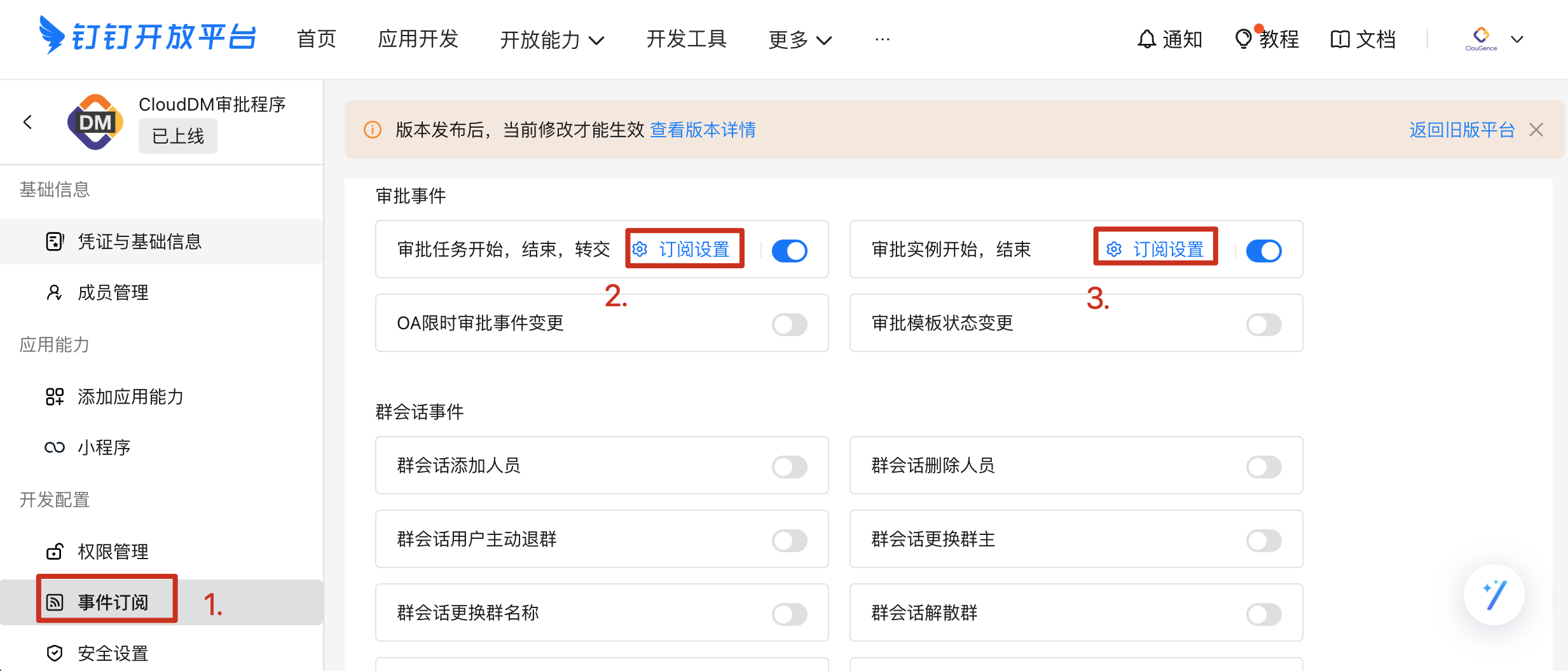
 warning
DingTalk sends all ticket events by default. Each event consumes an API call and may incur charges. If your organization uses other approval forms, filter the subscriptions to avoid unnecessary calls.
-
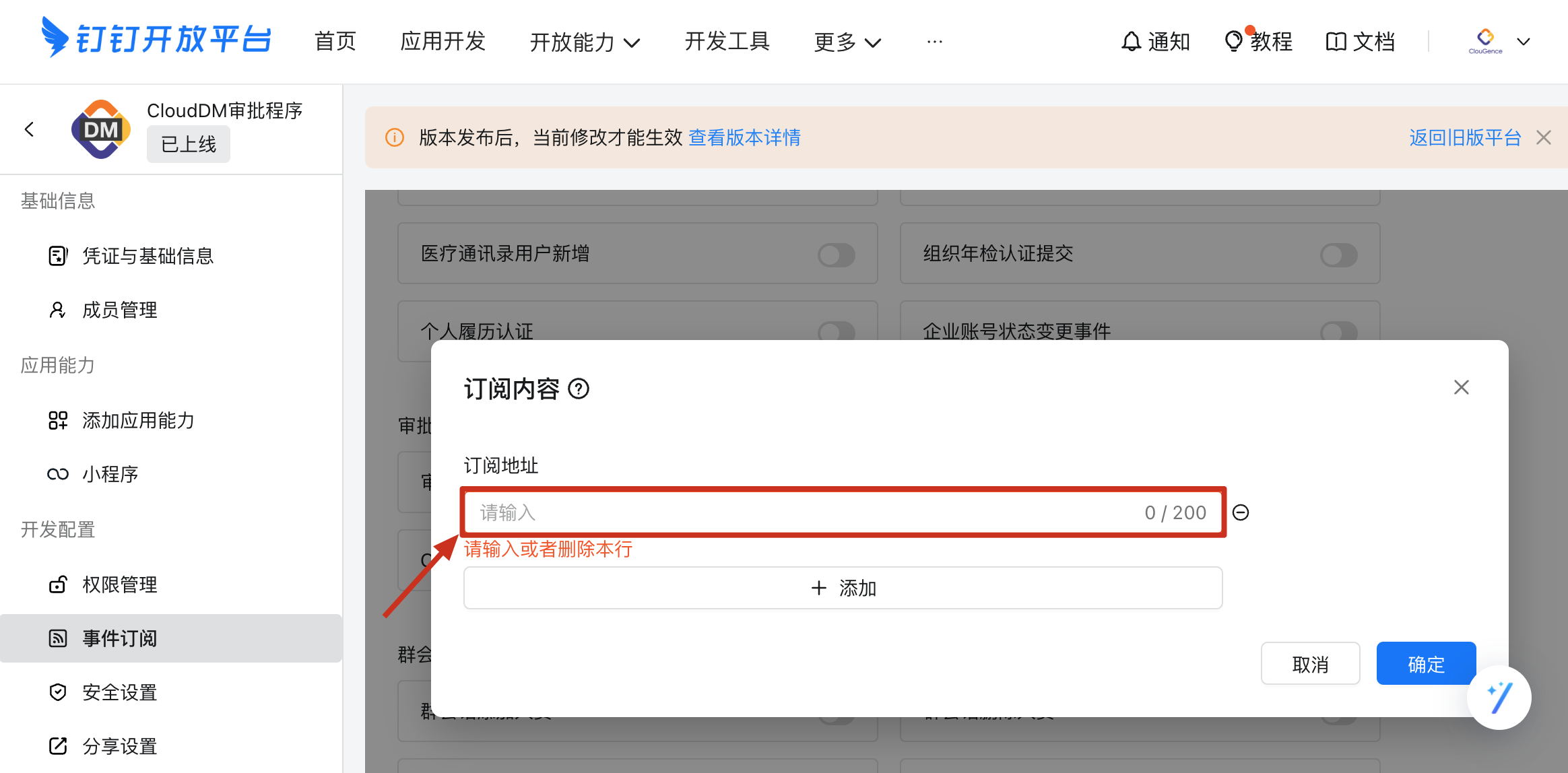
Enter the subscription paths.
- Approval instance start and end:
/v1.0/event/bpms_instance_change/processCode/{processCode}/type/* - Approval task start, end, and reassignment:
/v1.0/event/bpms_task_change/processCode/{processCode}/type/*
- Approval instance start and end:
-
Replace
{processCode}with the required form template code. In a copied value such asSalary Approval:PROC-88888888-8888-8888-8888-888888888888, use the part after the colon.
Use DingTalk approvals
In CloudDM, open Query Settings > Environments and enable tickets for the target environment. In the dialog, select DingTalk Workflow as the engine and choose the template you created.
Paid API usage
- Calls per completed approval consist of three fixed calls, periodic status checks over the approval duration, and each manual refresh of the ticket details.
- The three fixed calls retrieve the approval steps, create the workflow instance, and retrieve the final status.