Feishu approvals
The provider screenshots in this guide show its Chinese interface.
Configure the approval engine
- Sign in to CloudDM with permission to manage integrations.
- Prepare the credentials in Feishu app setup.
- Open Integrations > Approval Engines.
- Click Add and select Feishu Approval.
- Enter App ID, App Secret, and API Timeout (seconds). Turn on Enable Immediately if needed.
- Click Add.
Feishu app setup
info
You can use the same Feishu app for single sign-on and ticket approvals, or configure them separately.
Before you begin
- Sign in to the Feishu developer console and select your organization.
- If using an existing app, add your account under Custom App > Member Management. Otherwise, create an app below.
Configure the app
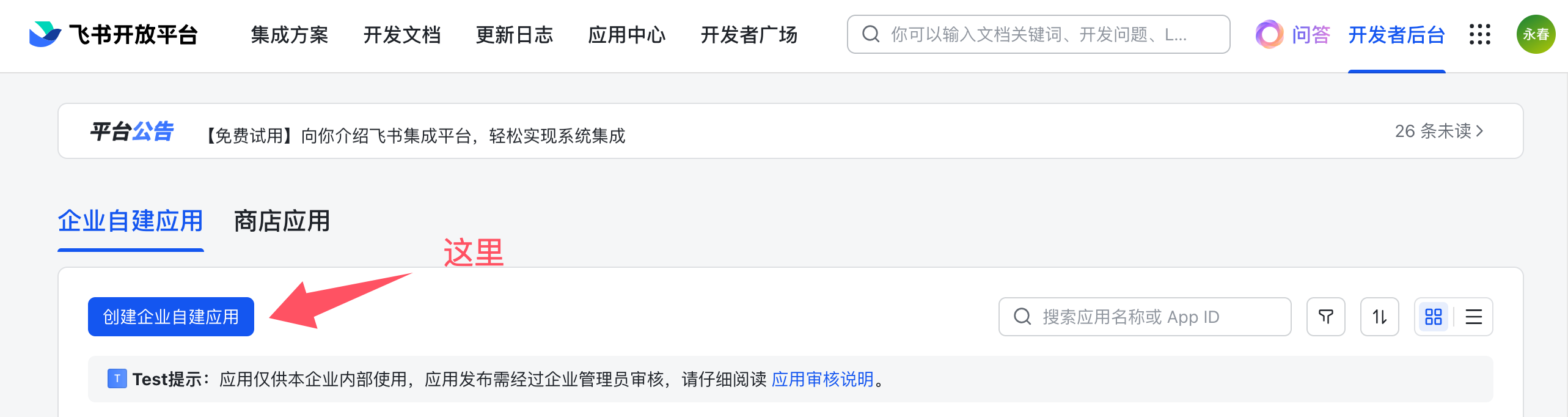
- Open App Development > Feishu Apps > Create App.
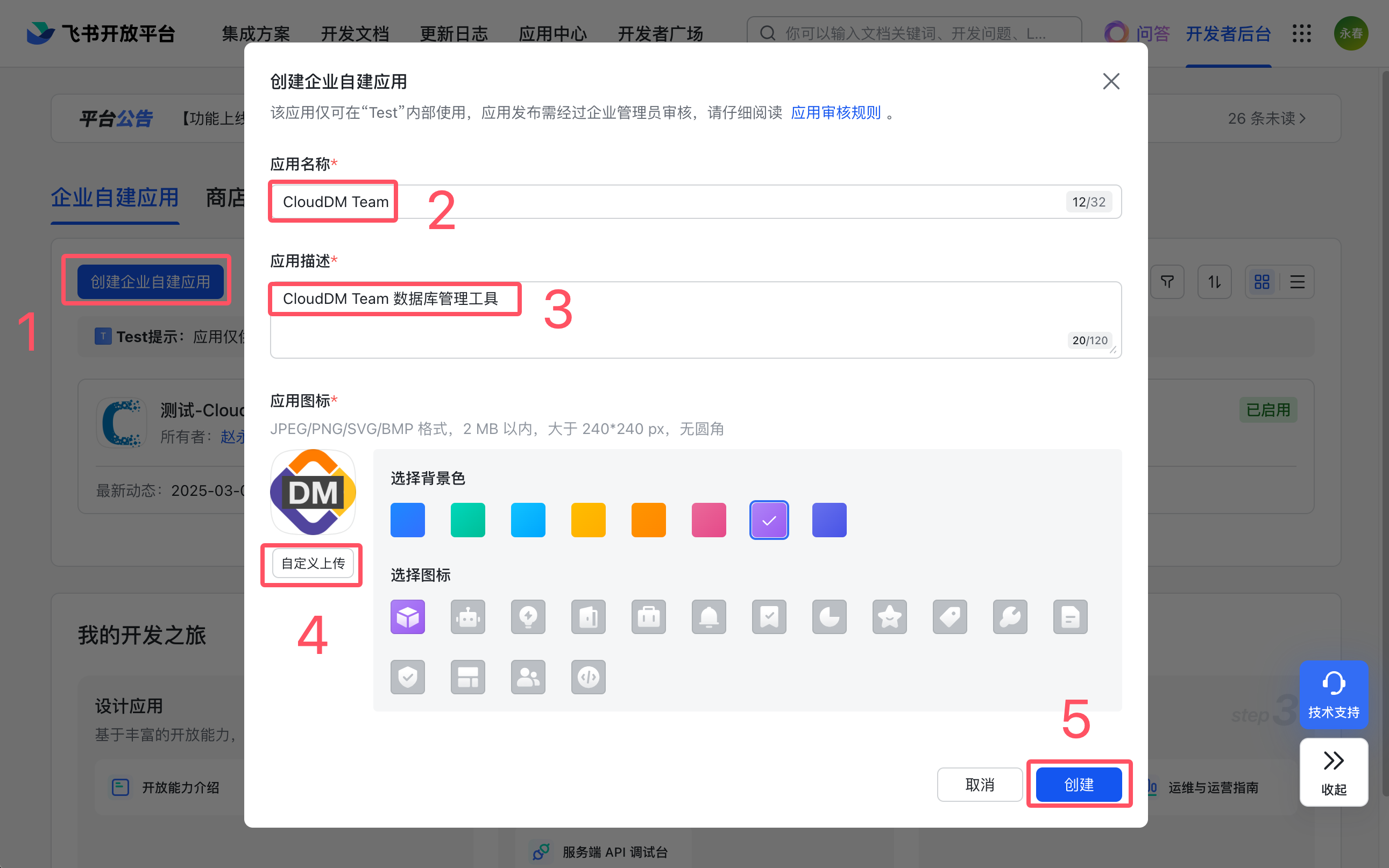
- Enter the app details and click Save. Icons are available under Resource downloads.
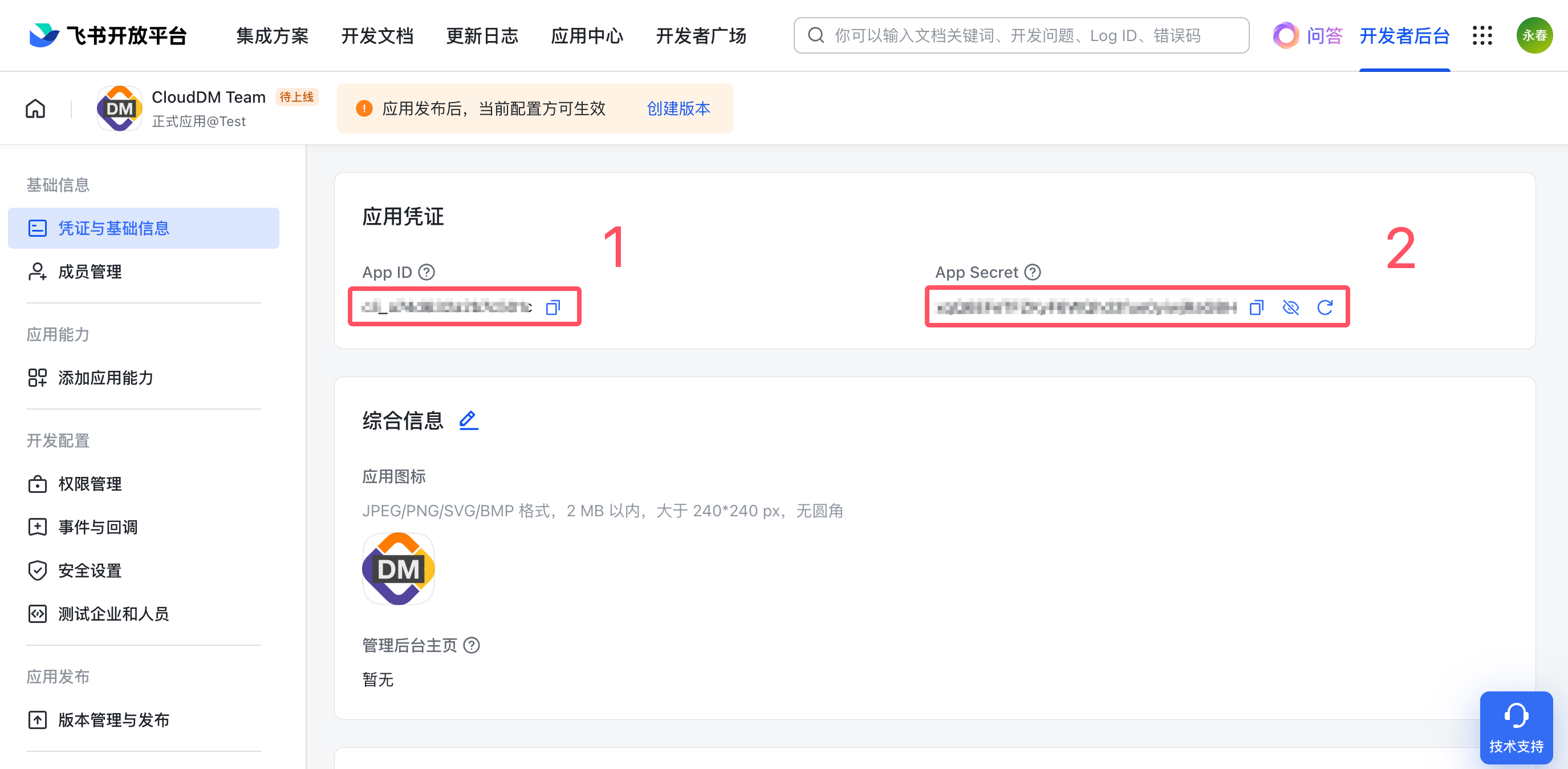
- Under Credentials and Basic Information, copy App ID and App Secret.
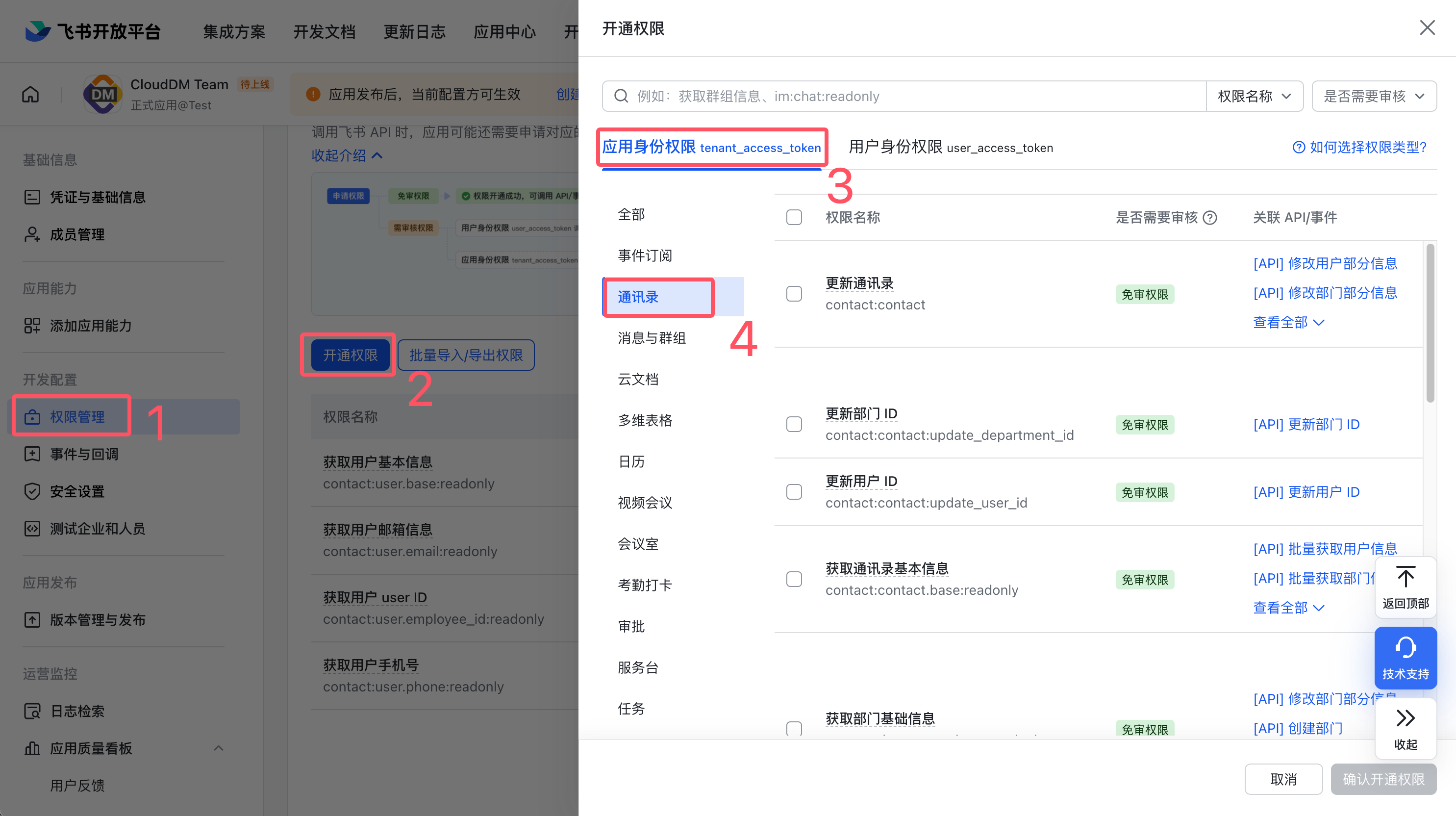
- Under Permission Management > Add Permissions > App Permissions, grant the following permissions.
- Approvals: access the approval app and read, create, update, and delete approval app information, native approval definitions, and native approval instances.
- Directory: read basic directory information, read basic user information and user IDs, and look up user IDs by mobile number or email.
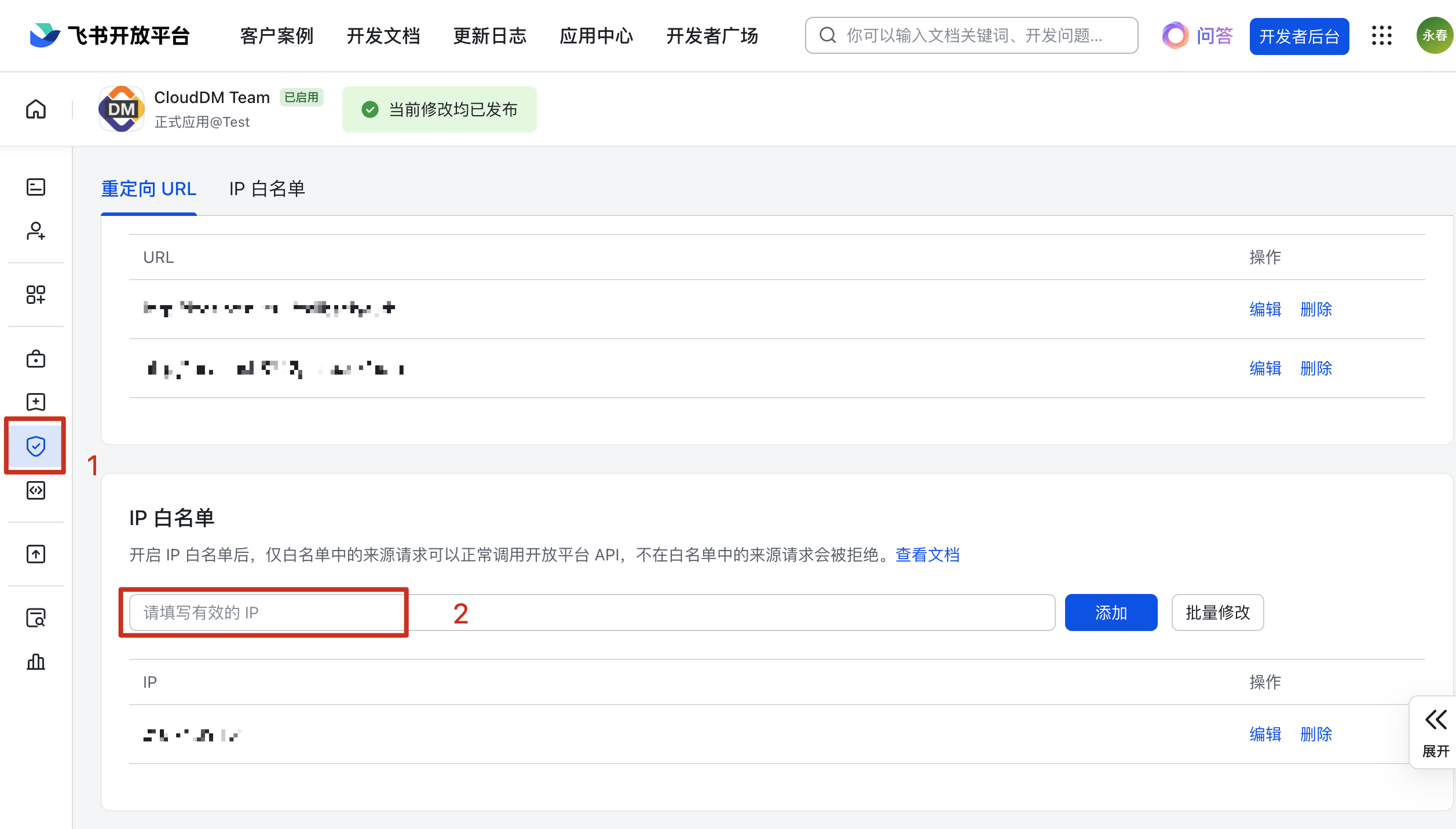
- Add the CloudDM server's public outbound IP address in Security Settings > IP Allowlist.
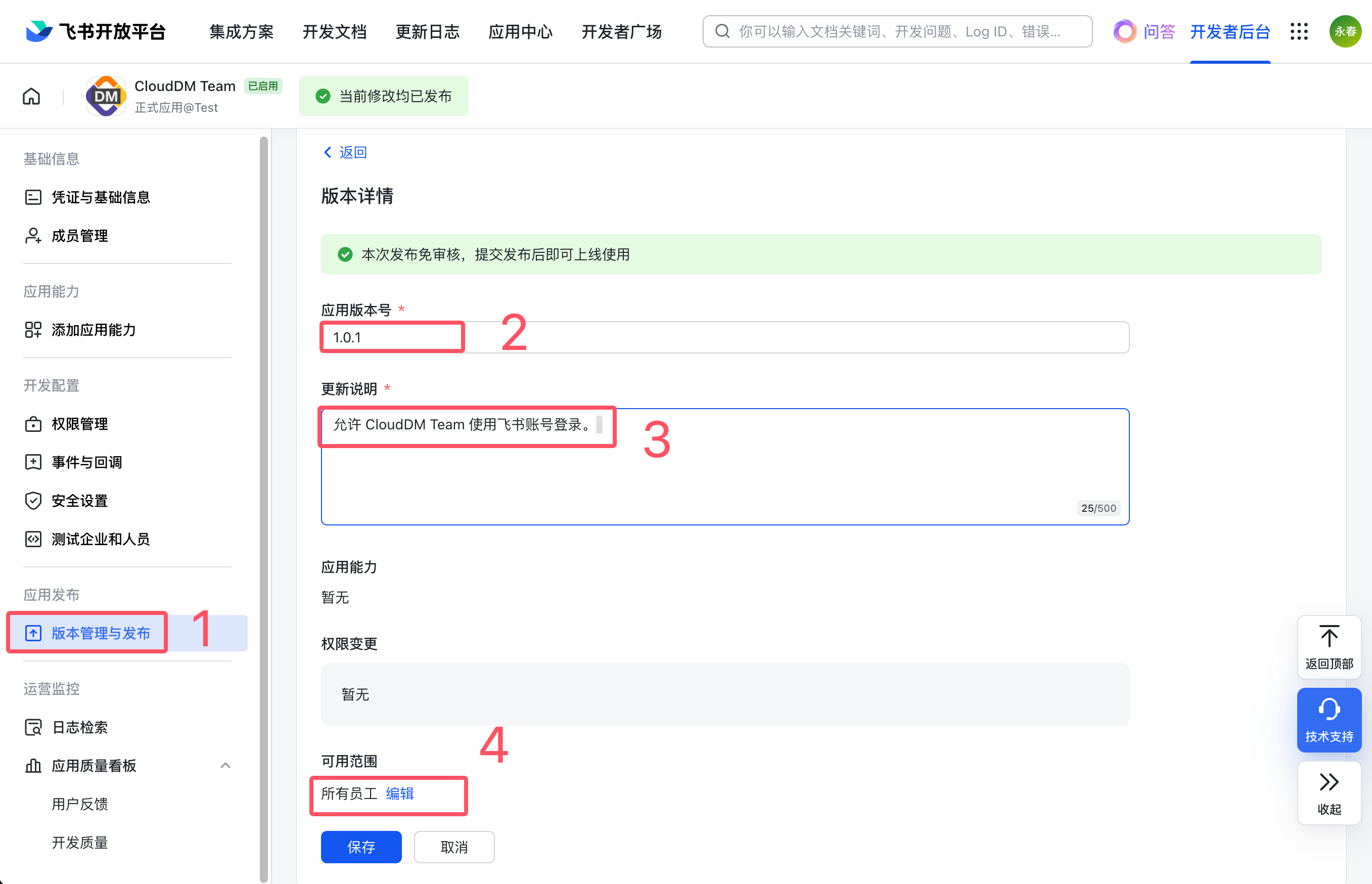
- Under Version Management and Release, publish the app and set availability to All Employees.
Configure approval forms
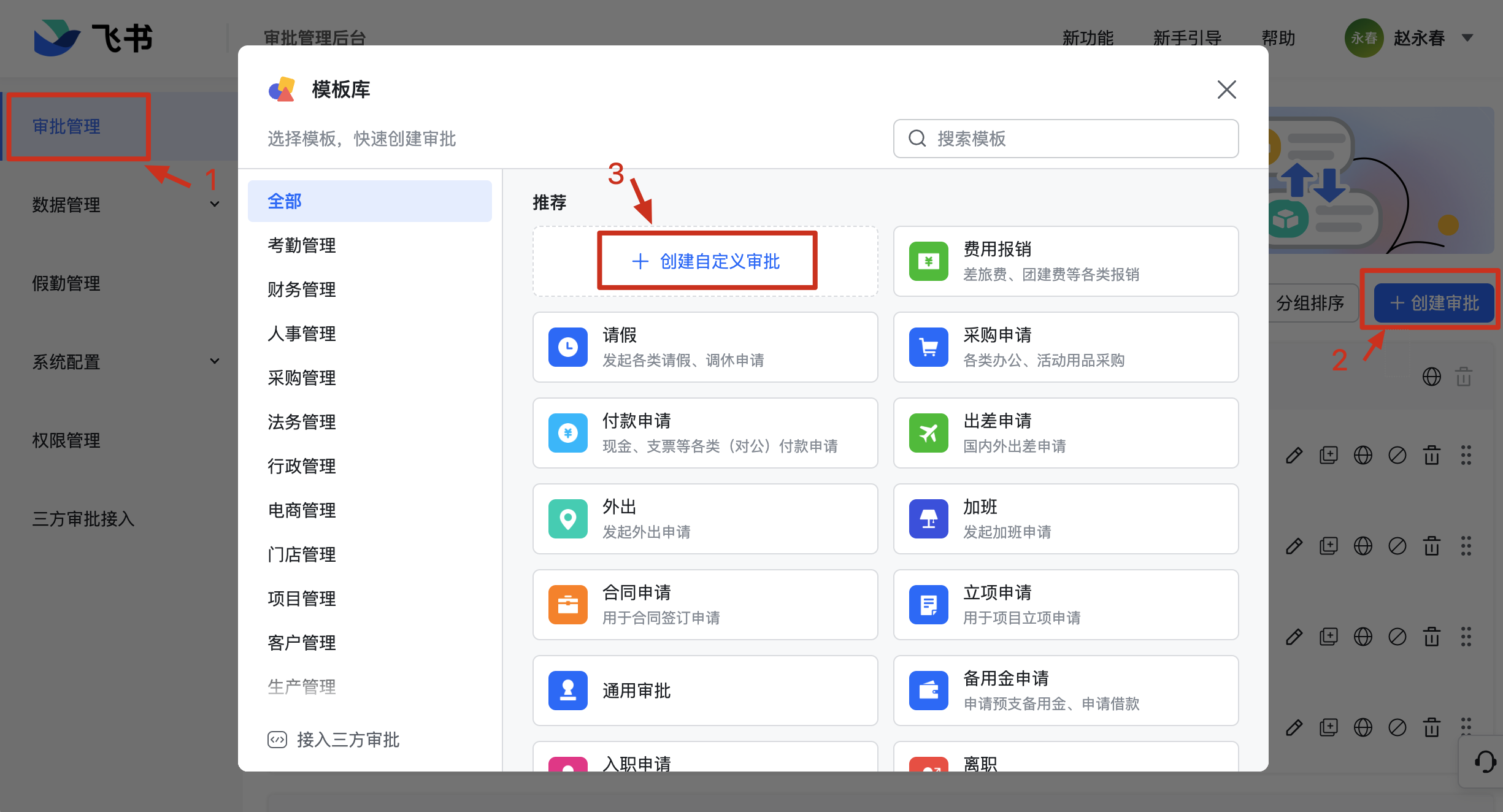
- Open the Feishu approvals admin console. Under Approval Management > Create Approval, select Create Custom Approval.
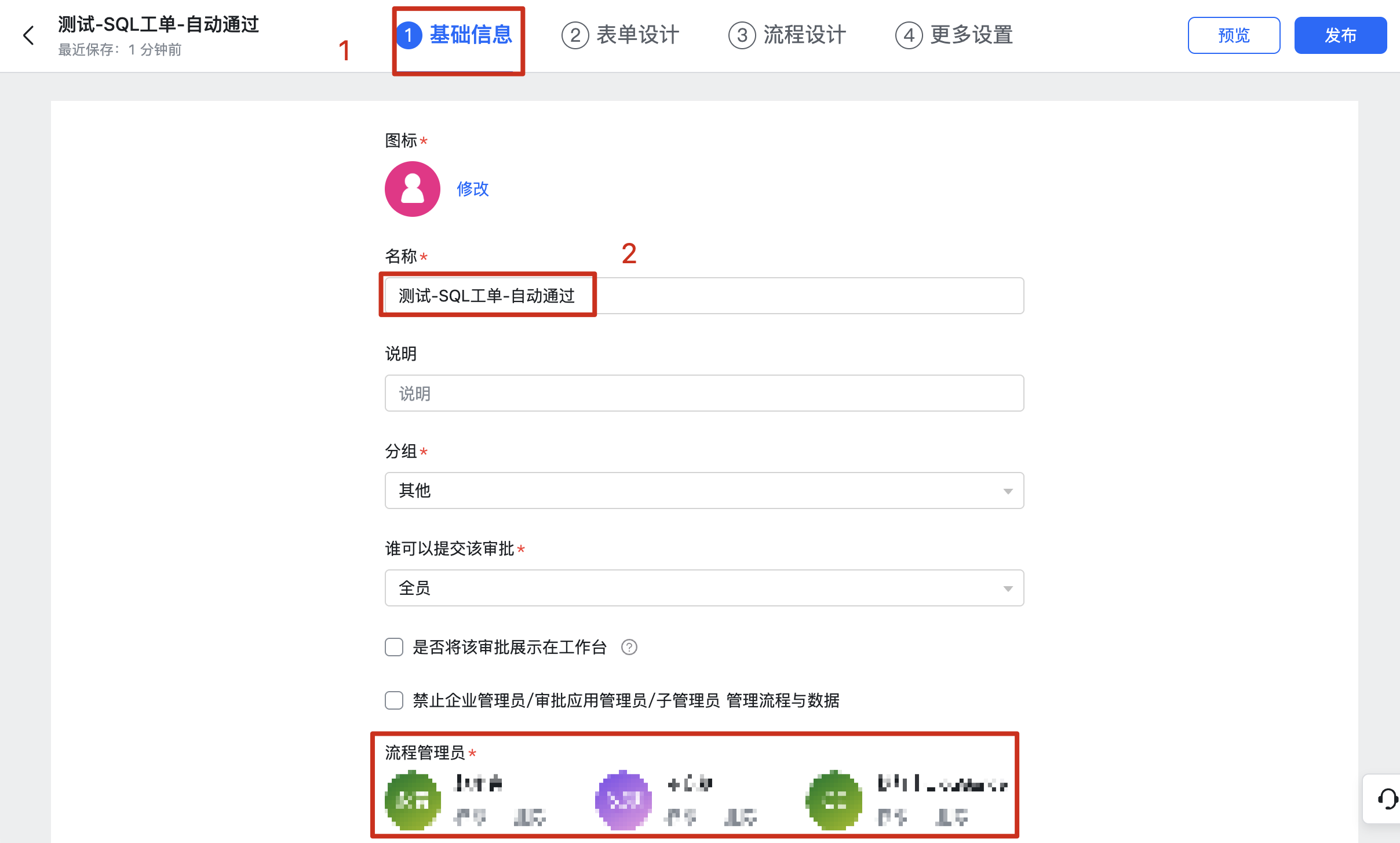
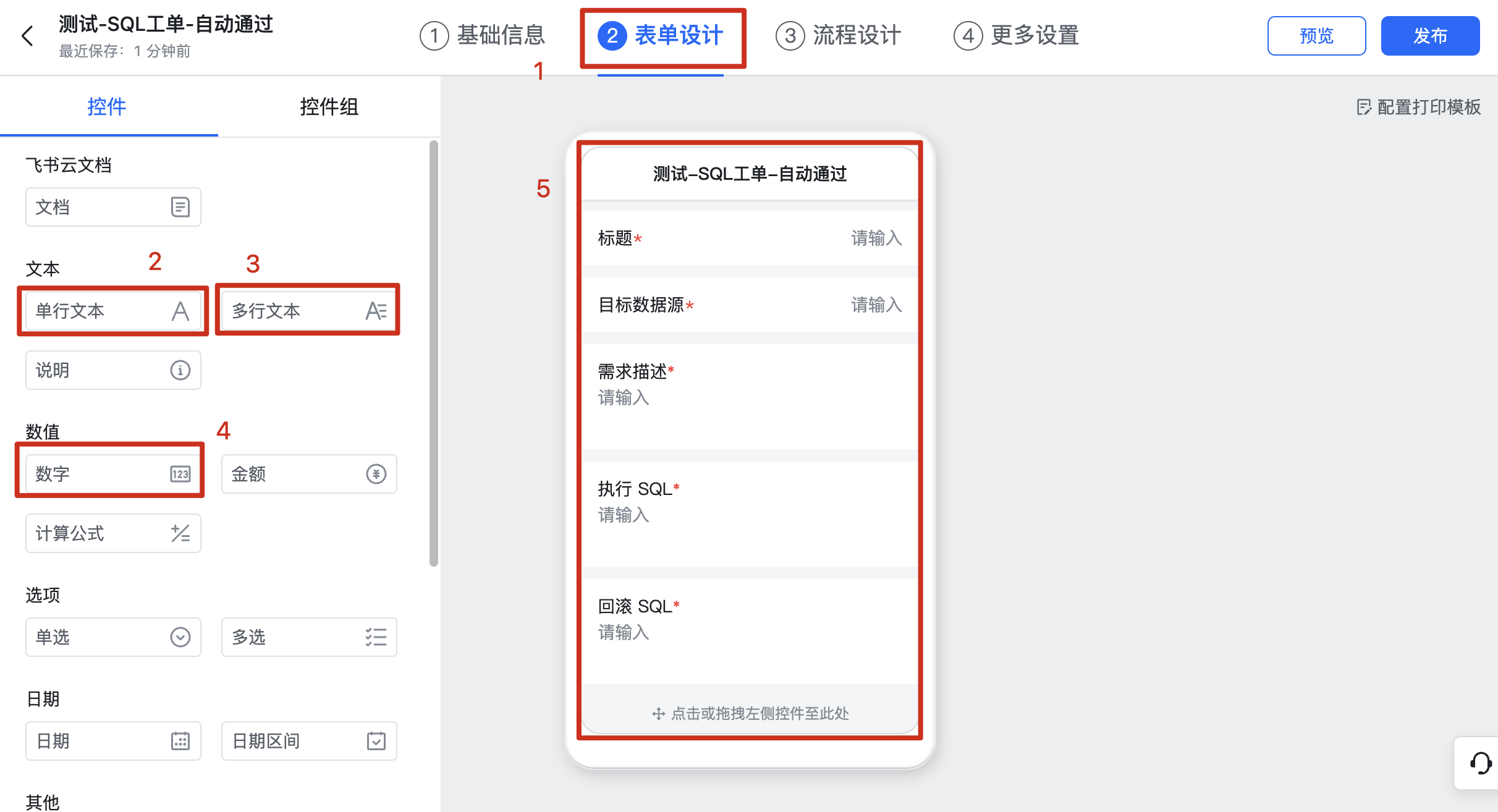
- Under Form Design, add the appropriate fields without marking them required.
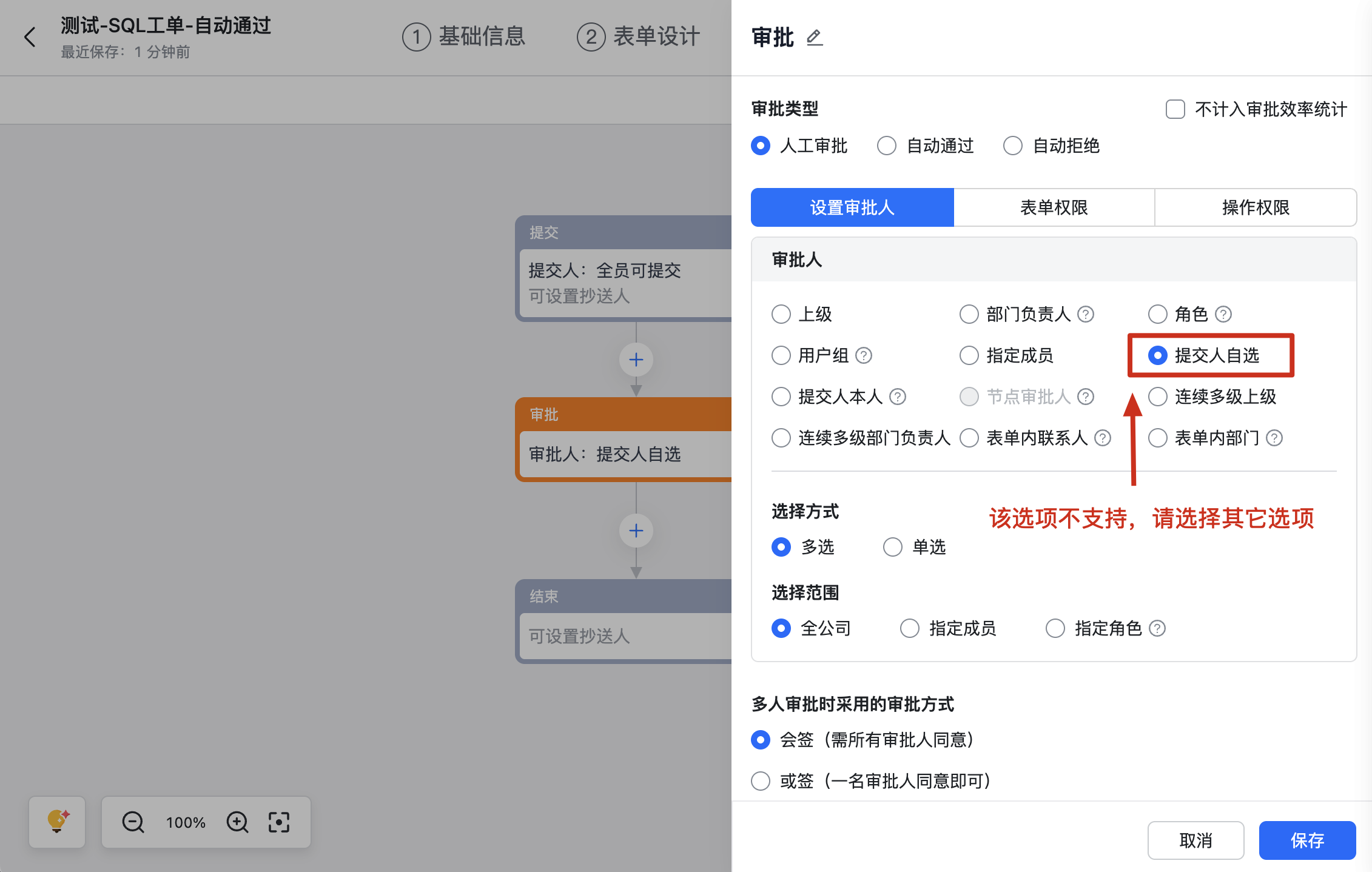
- Under Workflow Design, set the approvers and approval method for each step. CloudDM does not support letting the requester select approvers.
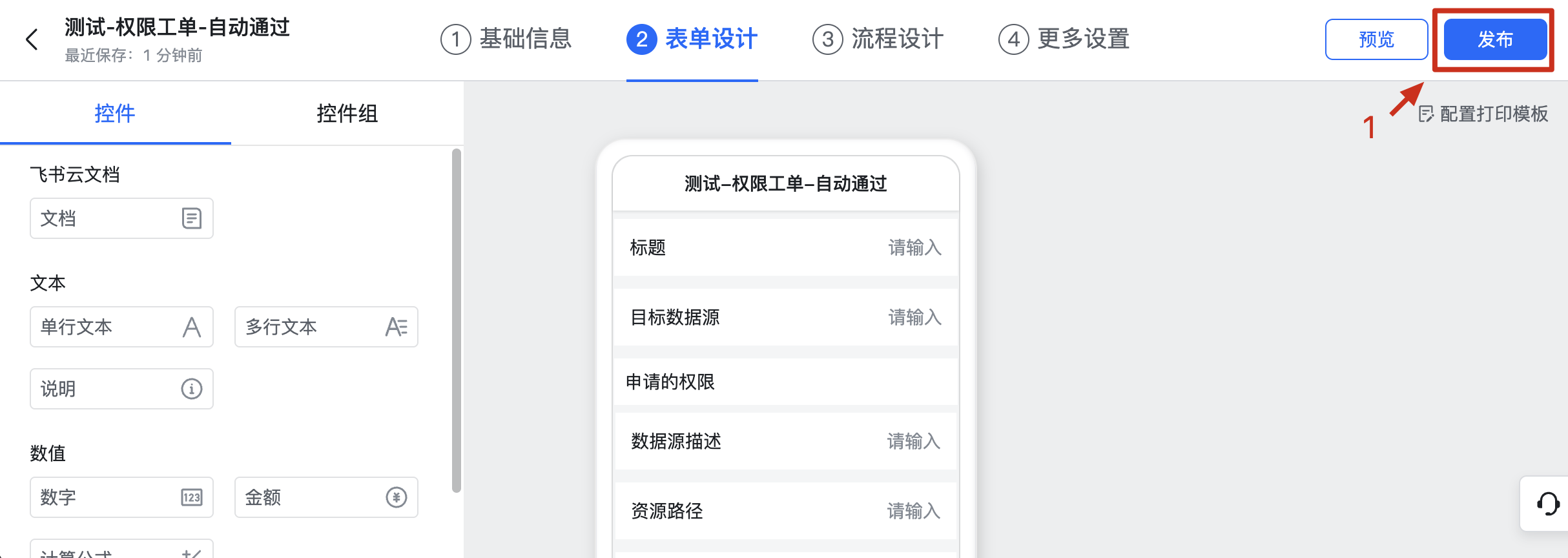
- Click Publish.
SQL tickets
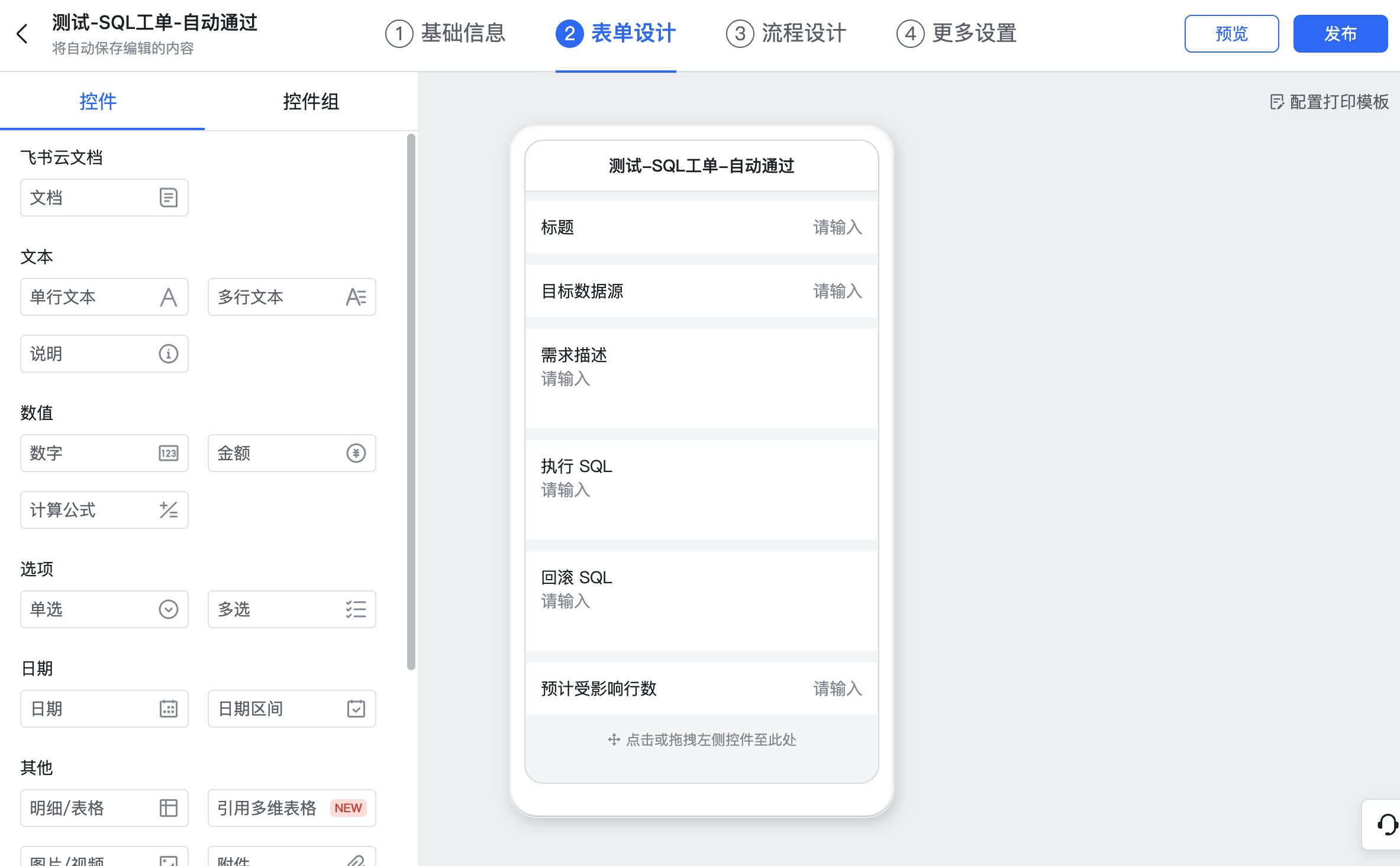
- Title (single-line text)
- Target DataSource (single-line text)
- Request description (multiline text)
- SQL to execute (multiline text)
- Rollback SQL (multiline text)
- Estimated affected rows (number)
info
The approval form truncates values that exceed its limits. View the full values in the CloudDM Console. The limit is 400 characters for single-line fields and 4,000 for multiline fields.
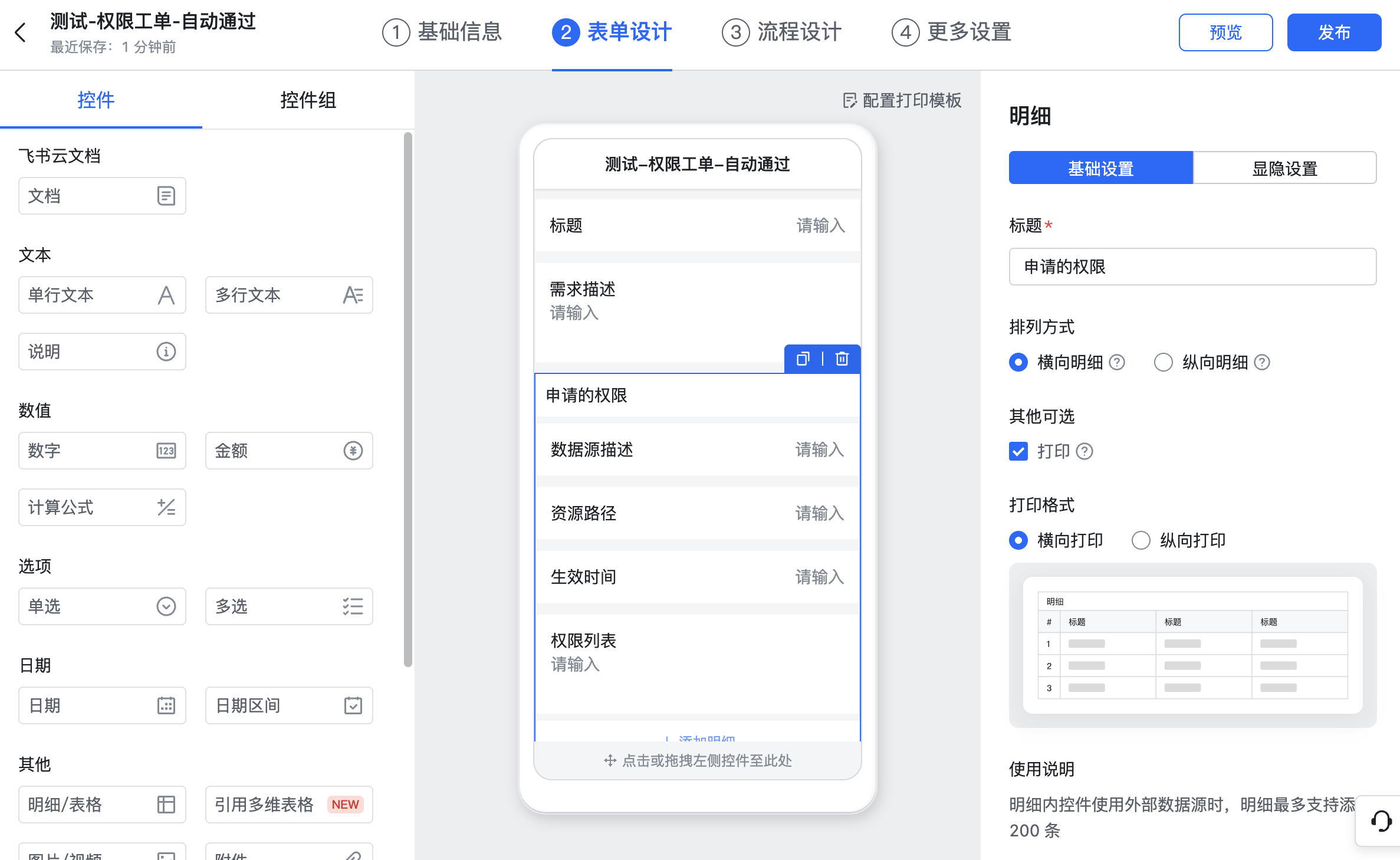
Permission tickets
- Title (single-line text)
- Request description (multiline text)
- Requested permissions (details/table, use horizontal layout)
- DataSource description (single-line text)
- Resource path (single-line text)
- Effective time (single-line text)
- Permission list (multiline text)
Change tickets
- Title (single-line text)
- Request description (multiline text)
- Target DataSource (single-line text)
- Change flow (single-line text)
- Change (single-line text)
- Branch (single-line text)
- SQL to execute (multiline text)
Configure event delivery
- Confirm that Feishu approvals are enabled in CloudDM.
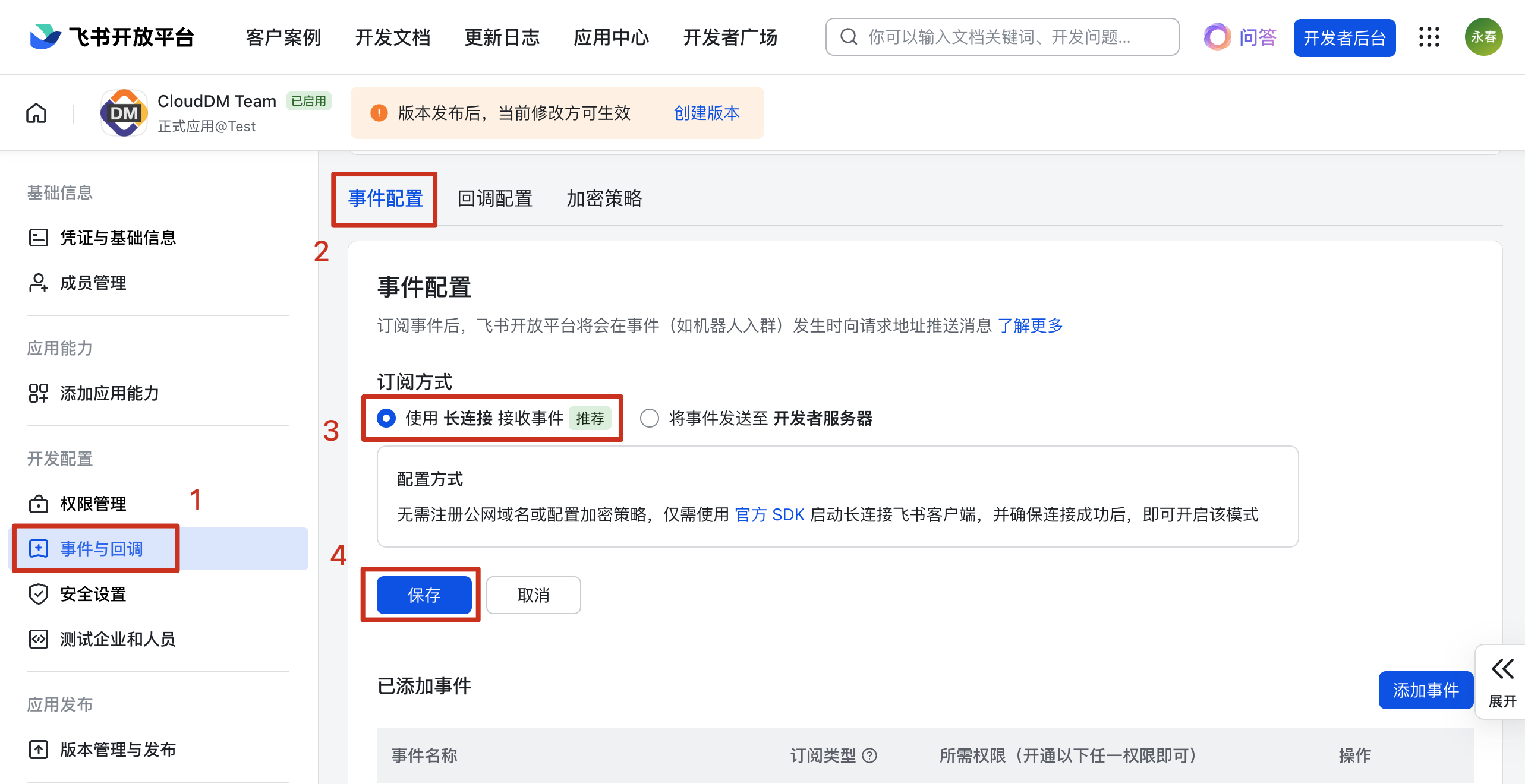
- In the Feishu developer console, open Events and Callbacks > Event Configuration > Subscription Method, choose to receive events over a persistent connection, and save.
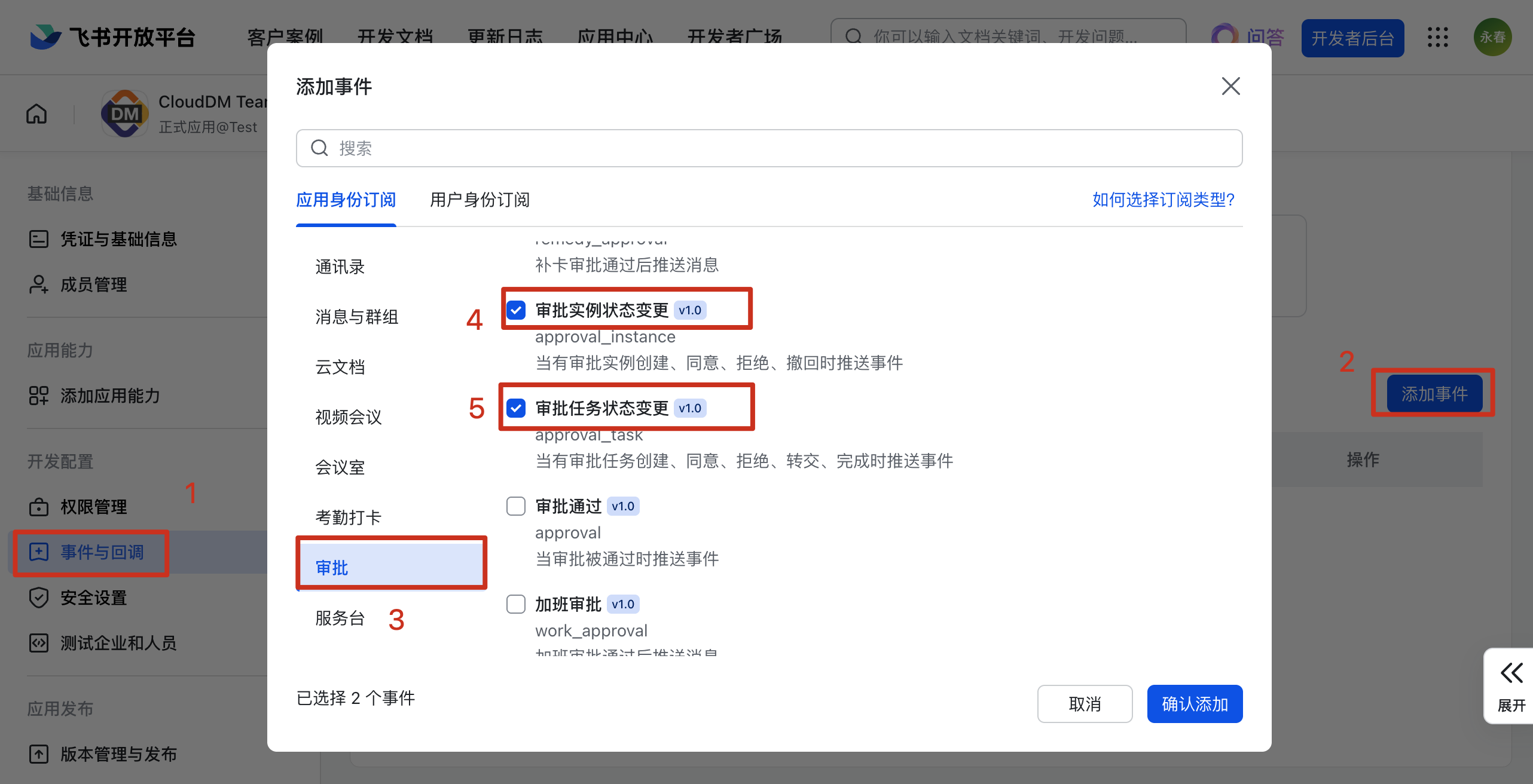
- Click Add Event and add the approval instance status change and approval task status change events.
- Under Version Management and Release, publish the app again with availability set to All Employees.
Use Feishu approvals
- In CloudDM, open Query Settings > Environments and enable tickets for the target environment.
- Select Feishu Workflow as the engine and click Add Template.
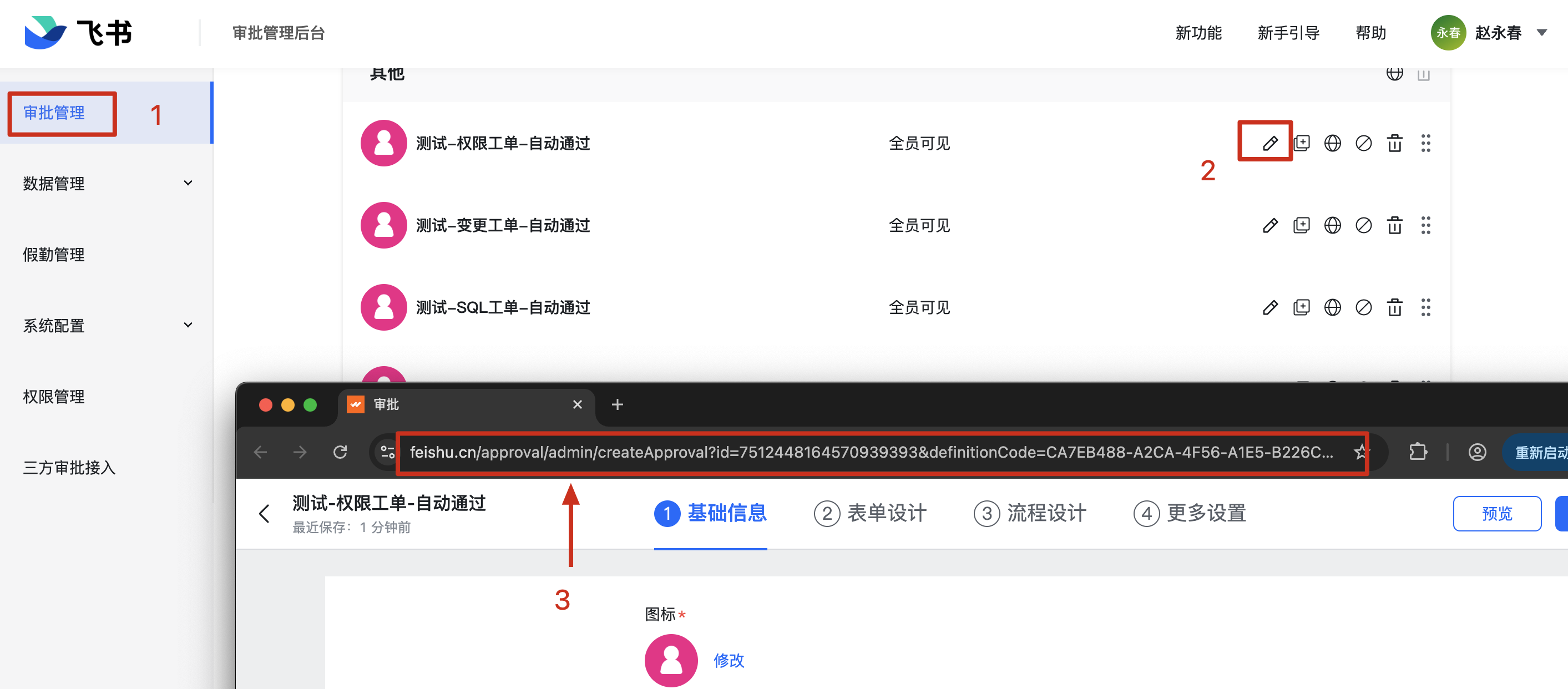
- In Feishu's Approval Management, open the template and copy the URL from the browser's address bar. Paste it into CloudDM and click Add Template.
- Select the new template and click OK.
Paid API usage
- Calls per completed approval consist of four fixed calls, the calls for each approval, periodic checks over the approval duration, and each manual refresh of the ticket details.
- The four fixed calls retrieve the approval steps, create the workflow instance, and retrieve status at the start and end of the approval.